What Is Waze for Android Auto?
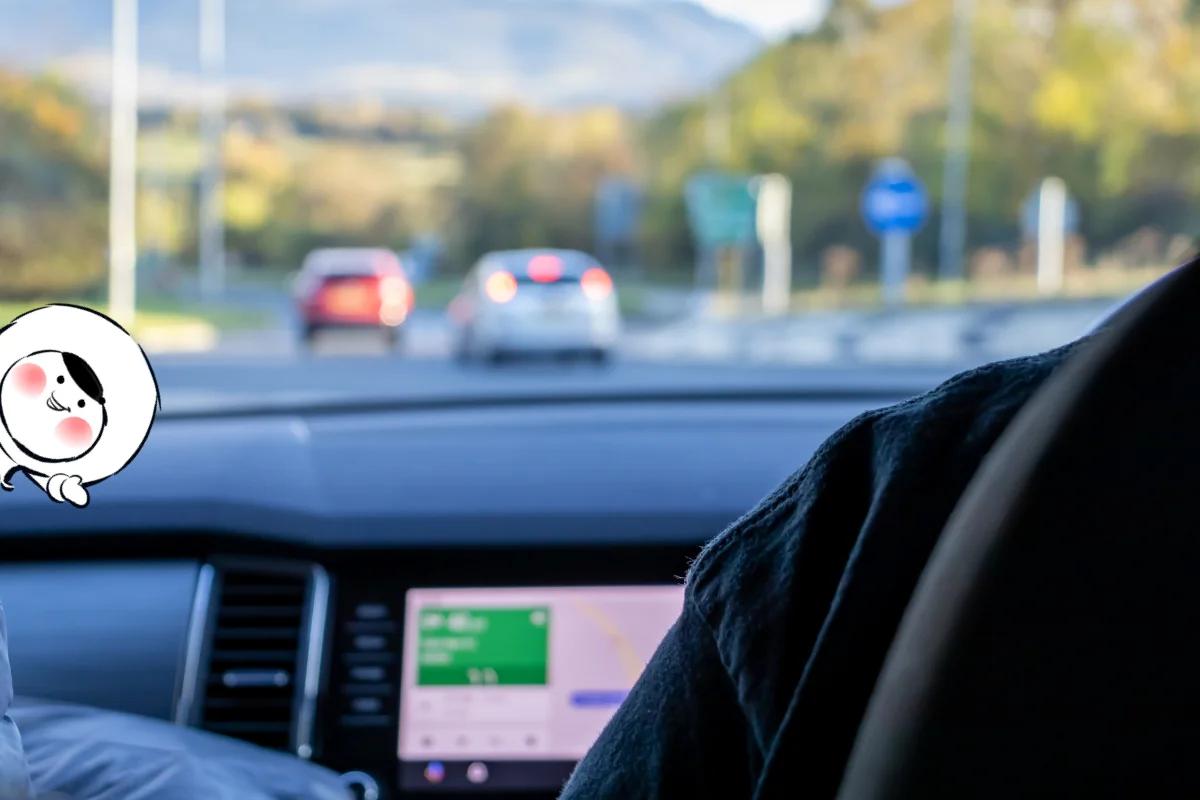
Waze for Android Auto is an integrated version of the app that runs on your car’s infotainment system. It mirrors key Waze features, like live traffic, alerts, and voice navigation, onto the dashboard, allowing you to drive hands-free and stay updated in real time.
Unlike the regular phone app, Android Auto optimizes Waze’s layout for larger screens and voice input, so it’s easier to glance at turns and hazards while driving.
How to Connect Waze to Android Auto
Follow these steps to set up Waze on Android Auto:
- Check compatibility: Ensure your car supports Android Auto and your phone runs Android 8.0 or later.
- Install Waze: Download the latest version from the Google Play Store.
- Connect your phone: Use a USB cable or wireless connection if your car supports it.
- Launch Android Auto: The interface will appear on your dashboard screen.
- Select Waze: Tap the navigation icon and choose Waze instead of Google Maps.
Once connected, Waze will automatically display your current route, live traffic data, and alerts.
Key Features of Waze on Android Auto
Waze retains its best features when used with Android Auto, including:
- Real-time traffic alerts - Get notified about accidents, police, and road closures reported by other drivers.
- Crowdsourced accuracy - See real-time speed limits, hazards, and route updates.
- Voice navigation - Choose your favorite from the list of Waze voices, including celebrity or regional options.
- ETA sharing - Send your estimated arrival time to contacts directly from the dashboard.
- Simplified interface - Large buttons, night mode, and minimal distractions for safe driving.
Waze Offline on Android Auto
You can use Waze offline only partially on Android Auto. Once you’ve started navigation while connected to the internet, Waze caches your route and basic map data. However, if you go off course or restart your car, you’ll need a live connection to reload directions.
For full offline maps, Google Maps remains the better option, but pairing Waze with a stable connection (like an Eskimo eSIM) ensures live updates never drop out.
Get Eskimo eSIM to stay connected globally
Need internet while travelling? Here's what we recommend:

Fixed data plans
- No speed reduction
- No expiry, keep your data forever
- Transfer data to anyone
- Personal hotspot


Common Waze Android Auto Problems and Fixes
| Waze not showing on Android Auto | Outdated app or missing permissions | Update Waze and Android Auto, then restart your phone |
| Voice navigation not working | Audio output misconfigured | Check “Play voice over Bluetooth” in Waze > Settings > Sound |
| Map freezes or lags | Connectivity issue | Switch to mobile data or verify eSIM signal |
| Black screen or crash | Cache overload | Clear Waze cache in phone settings and reconnect |
| Route won’t load | Offline or weak connection | Ensure active internet (e.g., via eSIM or hotspot) |
Tesla Waze: Quick Note
Tesla cars don’t support Android Auto or CarPlay, but you can still access Waze by visiting waze.com/livemap through Tesla’s built-in web browser. This provides a similar live map experience, just without in-dash turn-by-turn integration.
Using Waze with Eskimo eSIM
Waze depends on a live connection for traffic, alerts, and rerouting. An Eskimo eSIM keeps you connected seamlessly, even when driving through regions with inconsistent coverage.
Benefits include:
- Global coverage: Automatically connects in over 100 countries.
- Data rollover flexibility: Keep your unused data for the next trip.
- Extended 2-year validity: Activate once and travel worry-free.
With Eskimo, Waze stays fully functional, ensuring uninterrupted live navigation on Android Auto, no matter where you drive.
FAQs
Can I use Waze on Android Auto wirelessly?
Yes. If your car supports wireless Android Auto, Waze connects automatically once your phone is paired.
Why doesn’t Waze appear on Android Auto?
Make sure Waze is installed and updated. Reopen Android Auto and select Waze as your navigation app.
Does Waze work offline on Android Auto?
Only partially. It caches your route after you start navigation, but requires internet for rerouting and updates.
Can I use Waze in Tesla?
Yes, through Tesla’s browser at waze.com/livemap. There’s no official Android Auto support for Tesla.
How do I change voices on Waze in Android Auto?
Go to Settings → Voice & Sound → Waze voice on your phone. Your selection syncs automatically to Android Auto.