Background App Refresh on iPhone lets apps check for updates and new content when you are not actively using them. After you switch away from an app, it may run briefly and then move into a suspended state. With Background App Refresh enabled, suspended apps can still refresh in the background, which can make them feel more up to date when you open them again.
For most people, the smartest setup is not fully on or fully off. It usually makes more sense to keep it enabled only for apps that genuinely benefit from background updates, while disabling it for the rest. Apple also notes that Low Power Mode turns Background App Refresh off automatically.
What Background App Refresh on iPhone Actually Does
Apple explains that some apps move into a suspended state after you switch to another app. When Background App Refresh is enabled, those suspended apps can still check for updates and new content.
In everyday use, this can make certain apps feel more ready when you open them. A travel app may refresh booking details, a maps app may update information, and a cloud-based app may pull newer content before you tap into it. Your apps will still work if you turn the setting off, but they will usually refresh when you open them instead. That last point is an inference from Apple’s description of how suspended apps refresh content.
Background App Refresh Vs Push Notifications
Push notifications and Background App Refresh are not the same thing.
Push notifications are alerts sent to your phone from a server, such as a message alert or ride update. Background App Refresh is your phone allowing an app to pull in newer content behind the scenes so the app is more current when you open it. Apple describes the feature as suspended apps checking for updates and new content, not as the notification system itself.
That means turning Background App Refresh off does not automatically stop notifications. An app can still alert you even if it is no longer refreshing as much content in the background. The exact behavior can vary by app, but the distinction between alerts and background content updates is still important.
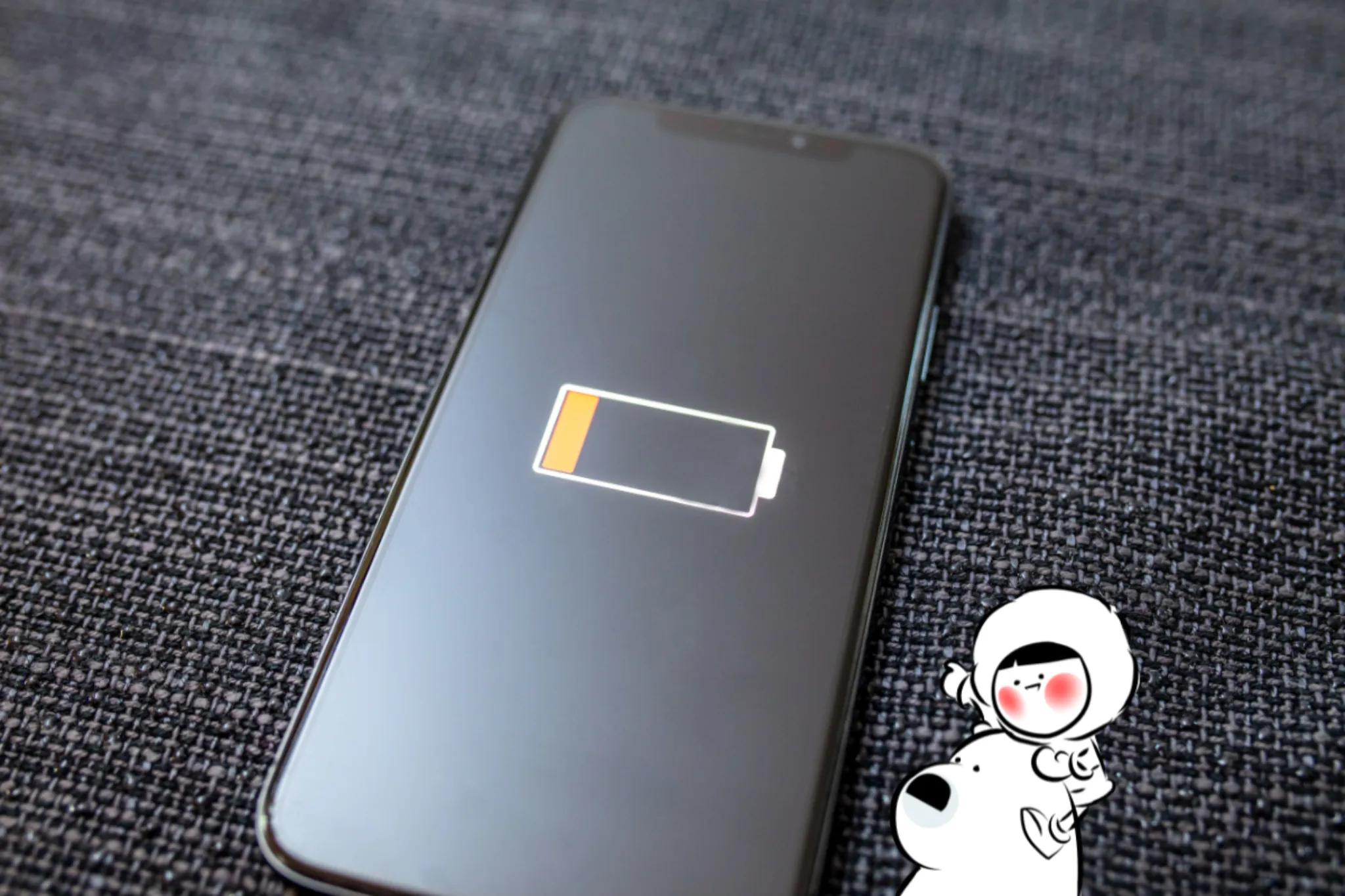
Does iPhone Background App Refresh Drain Battery?
It can. Apple does not publish a fixed number for iPhone Background App Refresh battery drain, because battery usage depends on the apps you use, how often they refresh, and your network conditions. But Apple does turn Background App Refresh off in Low Power Mode, which shows that reducing background activity is part of its battery-saving strategy.
If only a few important apps are allowed to refresh, the effect may be small. If many apps are refreshing frequently, especially over cellular data, the battery impact can become more noticeable. Apple also says there is typically no reason to force-quit apps to save battery, which makes Background App Refresh a more useful setting to review than constantly swiping apps away.
Does Background App Refresh Use Mobile Data?
Yes, it can contribute to iPhone background data usage.
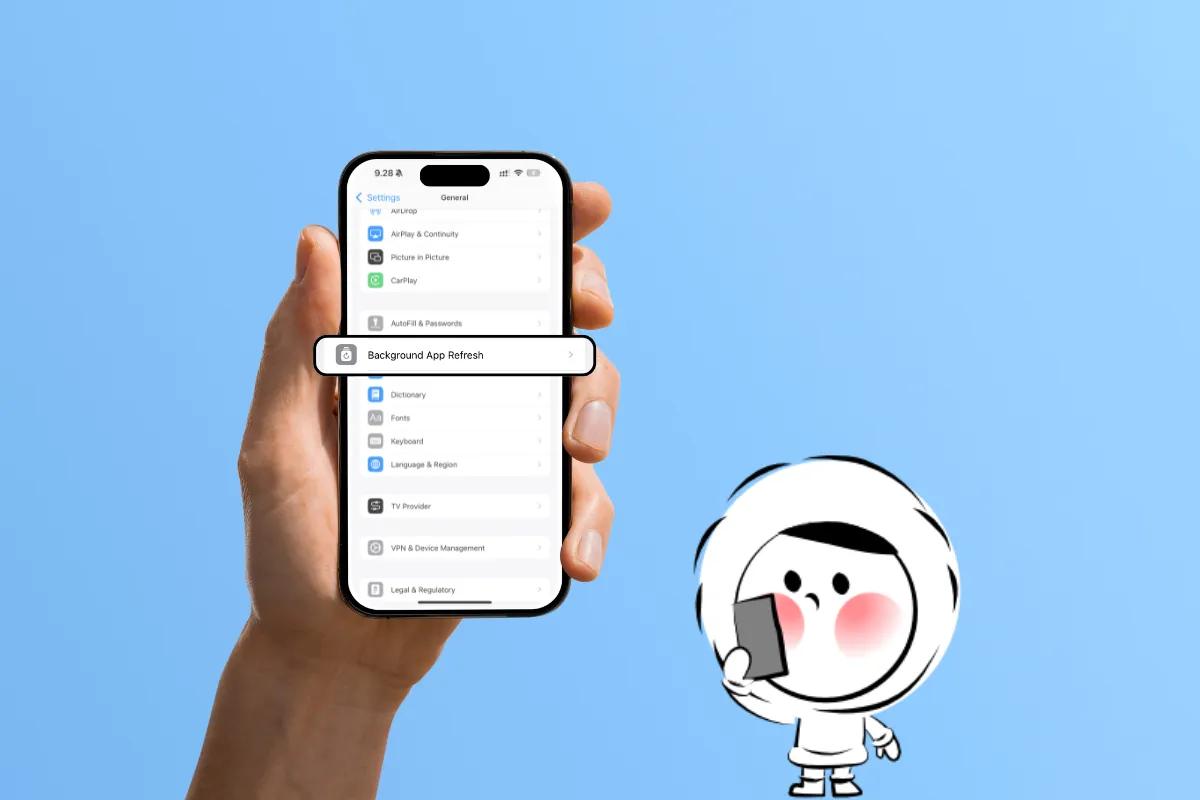
On iPhone, you can set Background App Refresh to Off, Wi-Fi, or Wi-Fi & Cellular in Settings > General > Background App Refresh. That means you control whether apps are allowed to refresh only on Wi-Fi or also over mobile data.
Apple’s Low Data Mode guidance also reinforces this. Low Data Mode is designed to reduce background network use and help save data on both cellular and Wi-Fi networks.
If you want to see which apps are using your data, Apple says you can check Settings > Cellular for per-app cellular usage and roaming statistics.
Get Eskimo eSIM to stay connected globally
Need internet while travelling? Here's what we recommend:

Fixed data plans
- No speed reduction
- No expiry, keep your data forever
- Transfer data to anyone
- Personal hotspot


Should Background App Refresh Be On Or Off?
For most people, the best answer is selective control.
Keep it on for apps where freshness actually matters, and turn it off for apps that do not need to preload content before you open them. Apple’s settings support both system-wide control and per-app control, which is why a mixed setup often works best.
A practical starting point looks like this:
Leave it on for:
- maps
- messaging apps
- ride-hailing apps
- airline, hotel, or booking apps
- a few work apps you use constantly
Turn it off for:
- games
- shopping apps
- many social apps
- streaming apps you do not use often
These are practical recommendations based on how the feature works, rather than a formal Apple list of app categories.
How To Turn Off Background App Refresh
If you want to know how to turn off Background App Refresh, Apple’s path is simple:
Go to Settings > General > Background App Refresh.
From there, you can choose:
- Off
- Wi-Fi
- Wi-Fi & Cellular
You can also turn it off for individual apps instead of disabling it completely across the phone.
Why Background App Refresh Matters When You Travel
This setting matters more when you travel because battery and data are both more limited resources. Background refreshing can quietly add to background data consumption, especially if you are using a limited eSIM plan or roaming internationally. Apple’s Low Data Mode exists because background network use can add up, particularly when you want tighter control over your data usage.
A good travel setup is to keep Background App Refresh enabled only for essential apps like maps, airline or rail apps, booking apps, and messaging. Everything else can usually wait until you open it. If you are trying to save battery on iPhone while traveling, switching non-essential apps to Wi-Fi only or turning them off entirely is a practical move. Apple also notes that Low Data Mode is helpful on slower networks, which makes this especially relevant when you are on the move.
For most people, the best setup is simple: keep it on for the apps that matter, and turn it off for the rest. That balance becomes even more useful when you travel, where battery life and data usage matter more. If you want to stay connected abroad without wasting data on unnecessary background activity, using an eSIM like Eskimo alongside smarter iPhone settings can make a noticeable difference. New users can also start with Eskimo’s free 500MB global data trial.
Low Power Mode And Background App Refresh
Apple is clear: when Low Power Mode is on, Background App Refresh is automatically turned off. If your battery is low and you enable Low Power Mode, iPhone handles this setting for you.
That makes this one of the clearest links between the two features, and it is also a natural internal link opportunity to your Low Power Mode article.
FAQs
What happens if I turn off Background App Refresh?
Apps stop checking for new content in the background and usually refresh when you open them instead. Apple describes Background App Refresh as the feature that lets suspended apps check for updates and new content.
Will I still get notifications if Background App Refresh is off?
Usually, yes. Background App Refresh is about background content updates, while push notifications are a separate alert mechanism.
Does Background App Refresh use battery?
Yes, it can contribute to battery use. Apple turns it off in Low Power Mode as part of reducing background activity.
Does Background App Refresh use mobile data?
Yes, if you allow Wi-Fi & Cellular. You can restrict it to Wi-Fi or turn it off entirely.
Is it better to turn Background App Refresh off?
Not always. For most people, the best setup is to leave it on only for important apps and turn it off for the rest. Apple’s per-app controls make that possible.