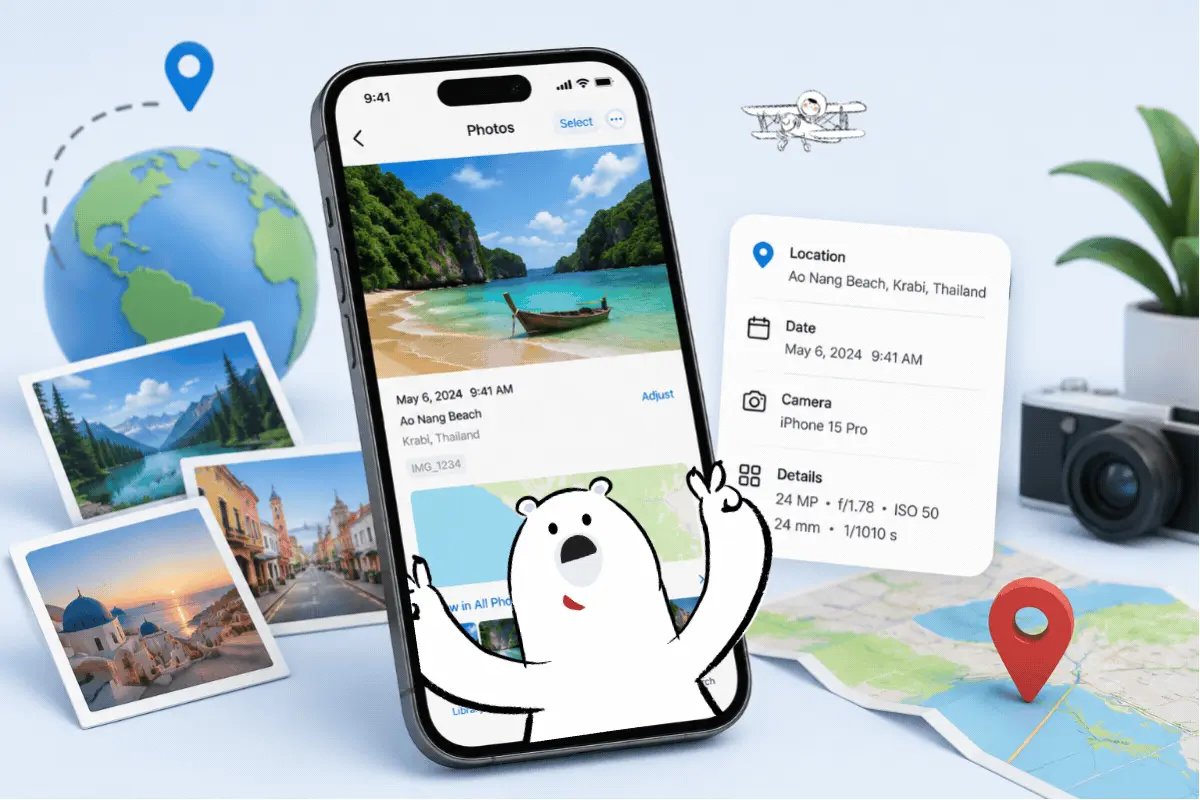
You can usually see where a photo was taken by checking the photo details on your phone. If location data was saved with the image, the photo may show a map, place name, GPS coordinates, or metadata.
Quick answer:
- On iPhone: Open Photos, select the image, then swipe up or tap the info button to see the location.
- On Android: Open Gallery or Google Photos, select the image, then tap Details, Info, or swipe up.
- In Google Photos: Open the photo, swipe up, and check the location section for a saved or estimated place.
- If no location appears: The photo may not have GPS data because location access was off, or the image was edited, screenshotted, compressed, downloaded, or shared through an app that removed metadata.
How Photo Location Data Works
Many phone photos can store location data when the camera has permission to use your device location.
On iPhone, Apple says Location Services can use GPS, Wi-Fi, Bluetooth, cellular networks, and other signals to determine where a photo or video was taken. Those coordinates can be embedded into the photo or video as metadata, which makes the file searchable by location later.
This hidden information is often called:
- Location data
- GPS data
- Geotag
- EXIF data
- Photo metadata
For travelers, this can be very useful. Your phone can quietly turn your camera roll into a map of your trip, grouping photos by city, beach, hotel area, landmark, or route.
There is also a privacy side. Photos taken at home, school, work, or private places may reveal more than intended if location metadata stays attached when you share them. Apple’s privacy guidance explains that photo location metadata can be managed or removed.
How To See Where A Photo Was Taken On iPhone
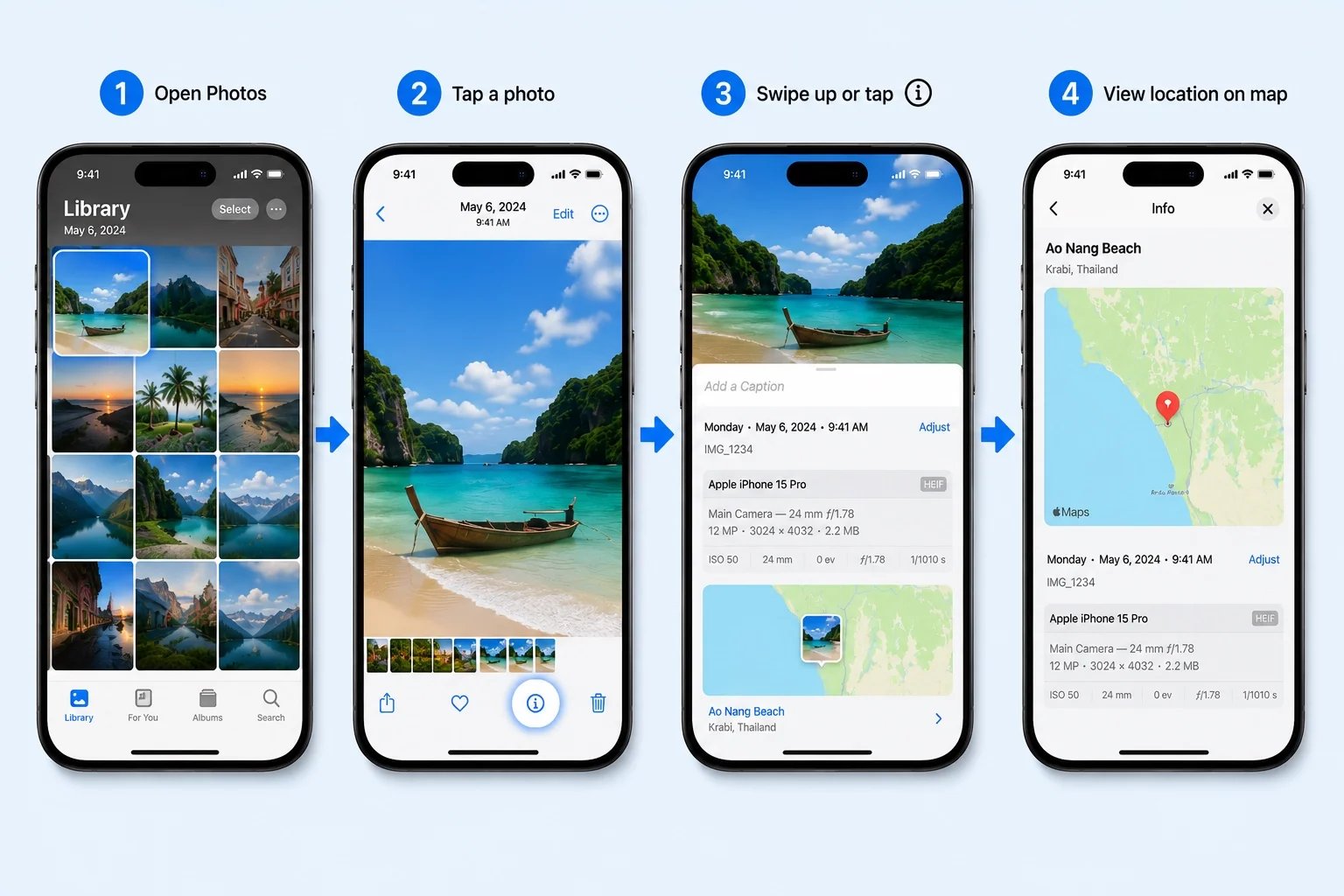
The easiest way to check where a photo was taken on iPhone is through the Photos app.
Steps:
- Open the Photos app.
- Open the photo you want to check.
- Swipe up on the photo or tap the info button.
- Look for a map, place name, or location section.
- Tap the map or location for more details.
Apple’s Photos app lets you view information about a photo or video, including details such as date, time, camera information, and location when available. It also lets users adjust the date, time, or location of selected photos.
If there is no map or location section, the photo may not have saved GPS data.
Common reasons include:
- Camera location permission was turned off.
- The photo was sent through an app that removed metadata.
- The image was downloaded from another source.
- The photo is a screenshot.
- The file was edited, compressed, or exported without location data.
How To See Where A Photo Was Taken On Android
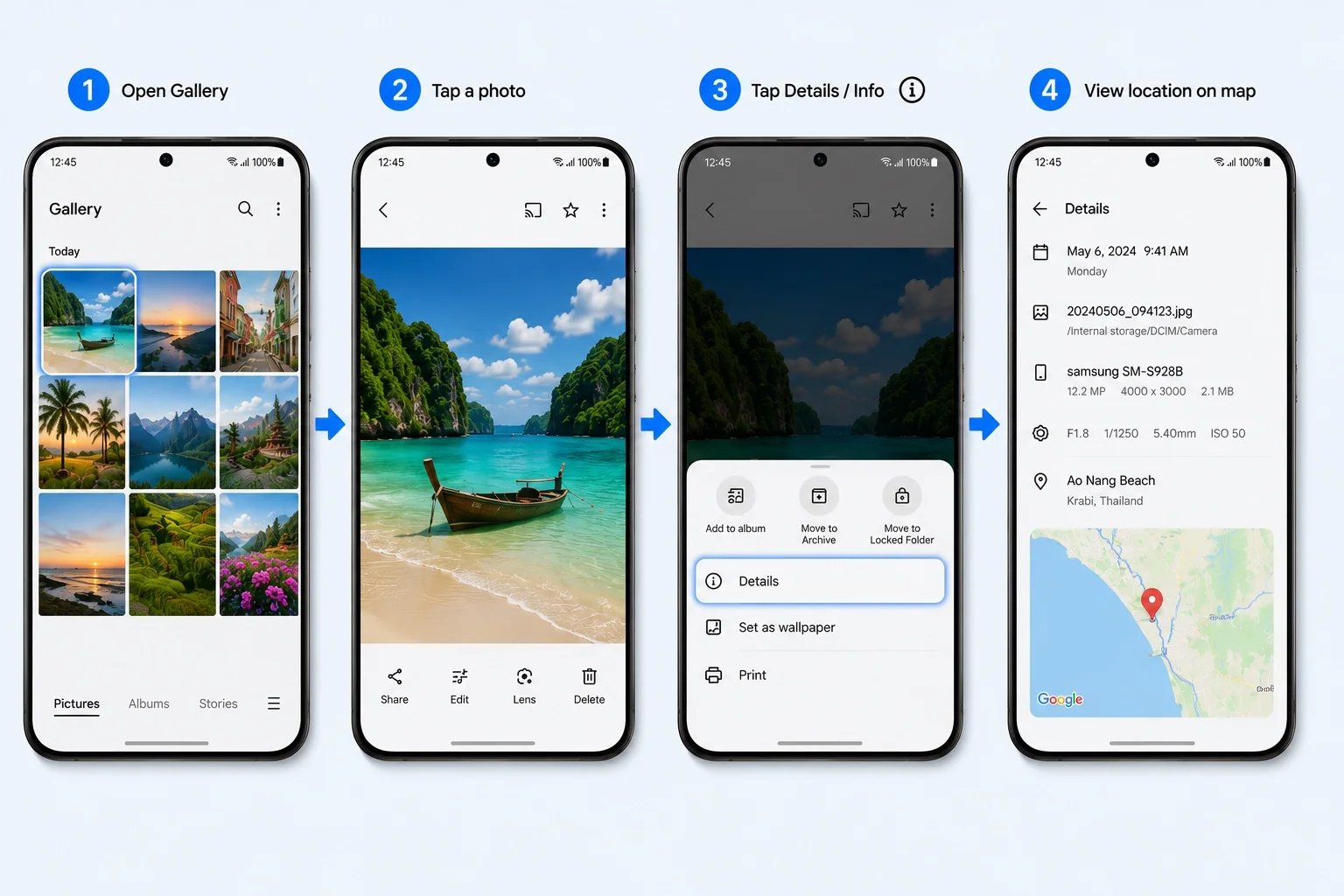
On Android, the exact steps depend on your phone brand and gallery app. The basic method is similar across most devices.
Steps:
- Open your Gallery app.
- Open the photo you want to check.
- Tap the three-dot menu, Details, Info, or swipe up.
- Look for a map, place name, coordinates, or location section.
Some Android phones use their own gallery app, while others rely more on Google Photos. On Samsung Galaxy phones, Gallery can show photo details when location data is available. Samsung also provides a built-in option to remove location data before sharing photos from Gallery.
If your default Gallery app does not show a location, open the same photo in Google Photos and check the photo details there.
How To See Where A Photo Was Taken In Google Photos
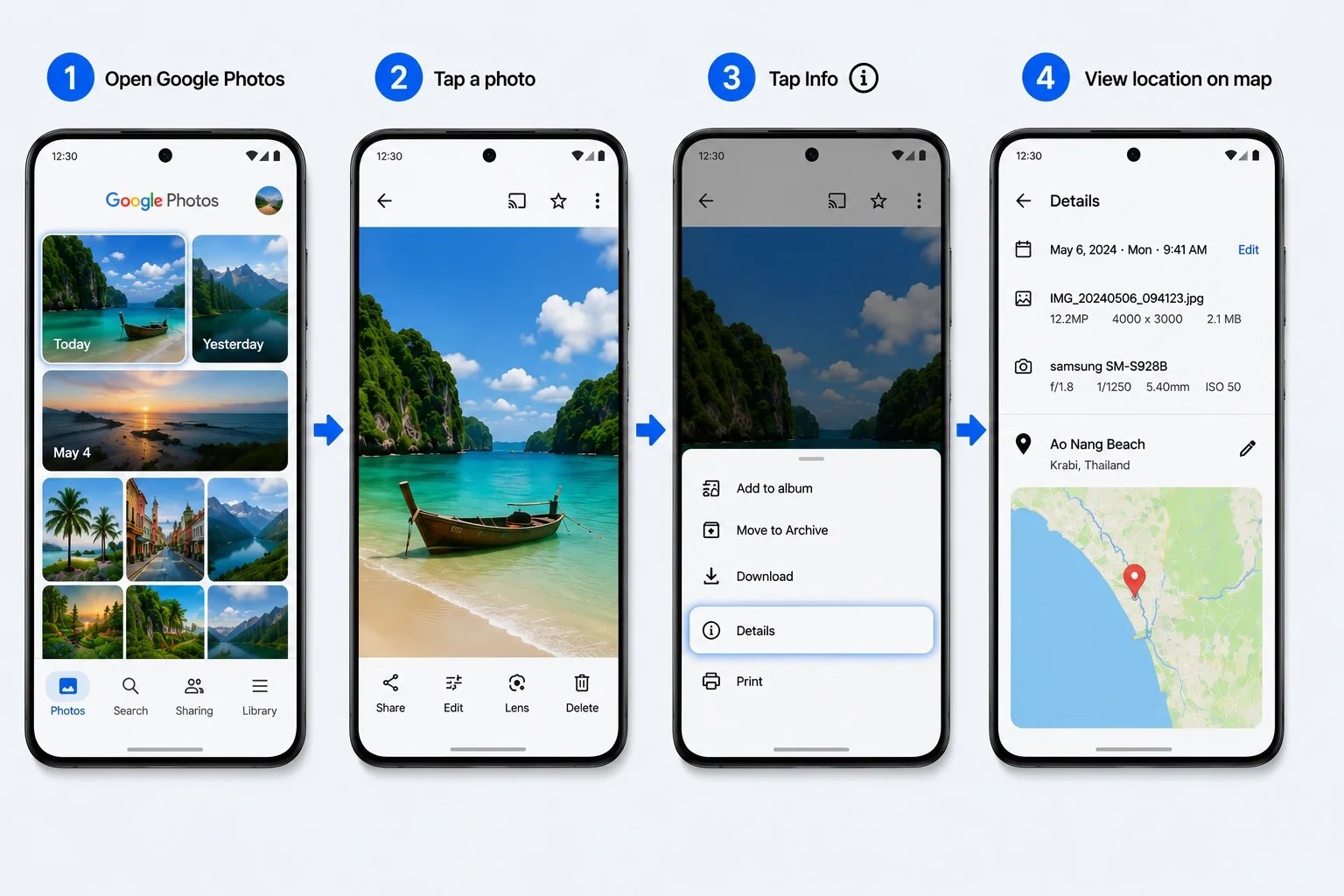
Google Photos can show where a photo was taken if the file has saved camera location data. In some cases, it can also show an estimated location.
On mobile:
- Open Google Photos.
- Open the photo.
- Swipe up or tap the three-dot menu.
- Look for the location section.
- Tap the map or place name if available.
On desktop:
- Open Google Photos in your browser.
- Open the photo.
- Click the info icon.
- Look for the location details.
Google says a photo may have a location if your device camera saved it, if you manually added it, or if Google Photos estimated it from information such as landmarks and locations in your other photos.
Google Photos can also let you add a location to a backed-up photo or edit and remove estimated locations. Google notes that if a location was automatically added by your camera, you cannot update or remove that camera-added location in Google Photos.
How To Check Photo Location From Metadata
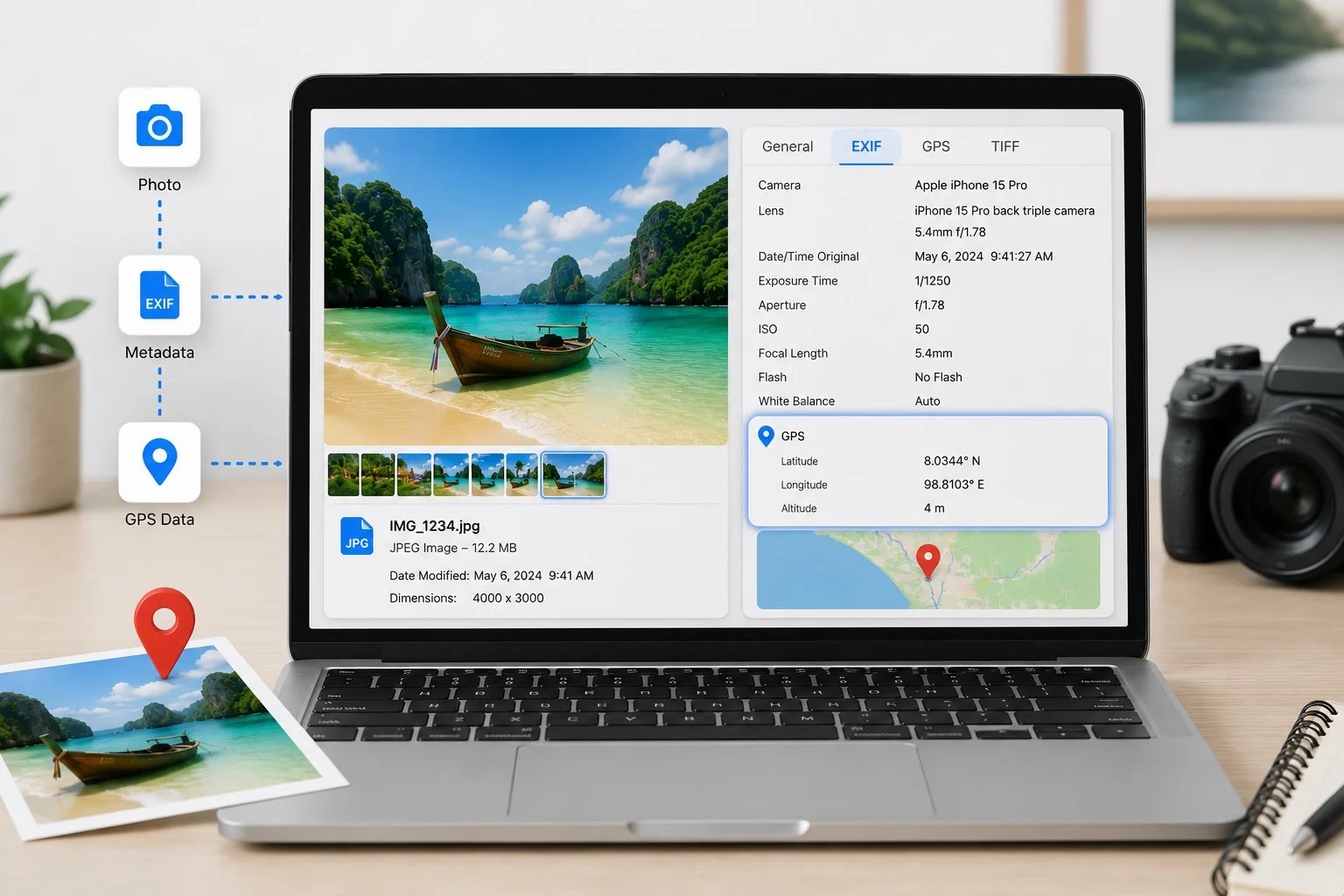
If your phone app does not show a location, you can sometimes check the photo metadata on a computer.
On Mac:
- Open the photo in Preview.
- Go to Tools.
- Select Show Inspector.
- Look for GPS or EXIF information.
On Windows:
- Right-click the photo file.
- Select Properties.
- Open the Details tab.
- Look for GPS, latitude, longitude, or location fields.
This works best with the original photo file. If the image was sent through messaging apps, downloaded from social media, edited, compressed, or saved as a screenshot, the original metadata may already be gone.
Get Eskimo eSIM to stay connected globally
Need internet while travelling? Here's what we recommend:

Fixed data plans
- No speed reduction
- No expiry, keep your data forever
- Transfer data to anyone
- Personal hotspot


How To Find A Photo Location Without Metadata
If there is no location data, you may still be able to identify where a photo was taken by checking visual clues in the image.
Look for:
- Street signs
- Shop names
- Restaurant menus
- Receipts
- Landmarks
- Transit signs
- Road markings
- Beach names
- Mountain shapes
- Hotel signs
- Architecture style
You can also use visual search tools, such as Google Lens, to identify landmarks, signs, buildings, or nearby businesses. This is less exact than GPS metadata, but it can help when a photo’s original location data has been removed.
For travel photos, use several clues together. A café sign, street name, temple gate, and nearby mountain can often narrow the location better than one clue alone.
Why A Photo Location May Be Missing
A photo location may be missing even if the picture was taken on a phone.
Common reasons include:
- Camera location access was off.
- The phone had poor GPS signal.
- The photo was shared through an app that removed metadata.
- The image was uploaded to a platform that stripped EXIF data.
- The file was edited or compressed.
- The photo came from a camera without GPS.
- The image is a screenshot.
- Google Photos only has an estimated location, not original GPS data.
This is why the original file is usually the best version to check. A photo saved from chat apps, social media, or another website may look the same, but its hidden metadata can be missing.
How To Remove Location From Photos Before Sharing
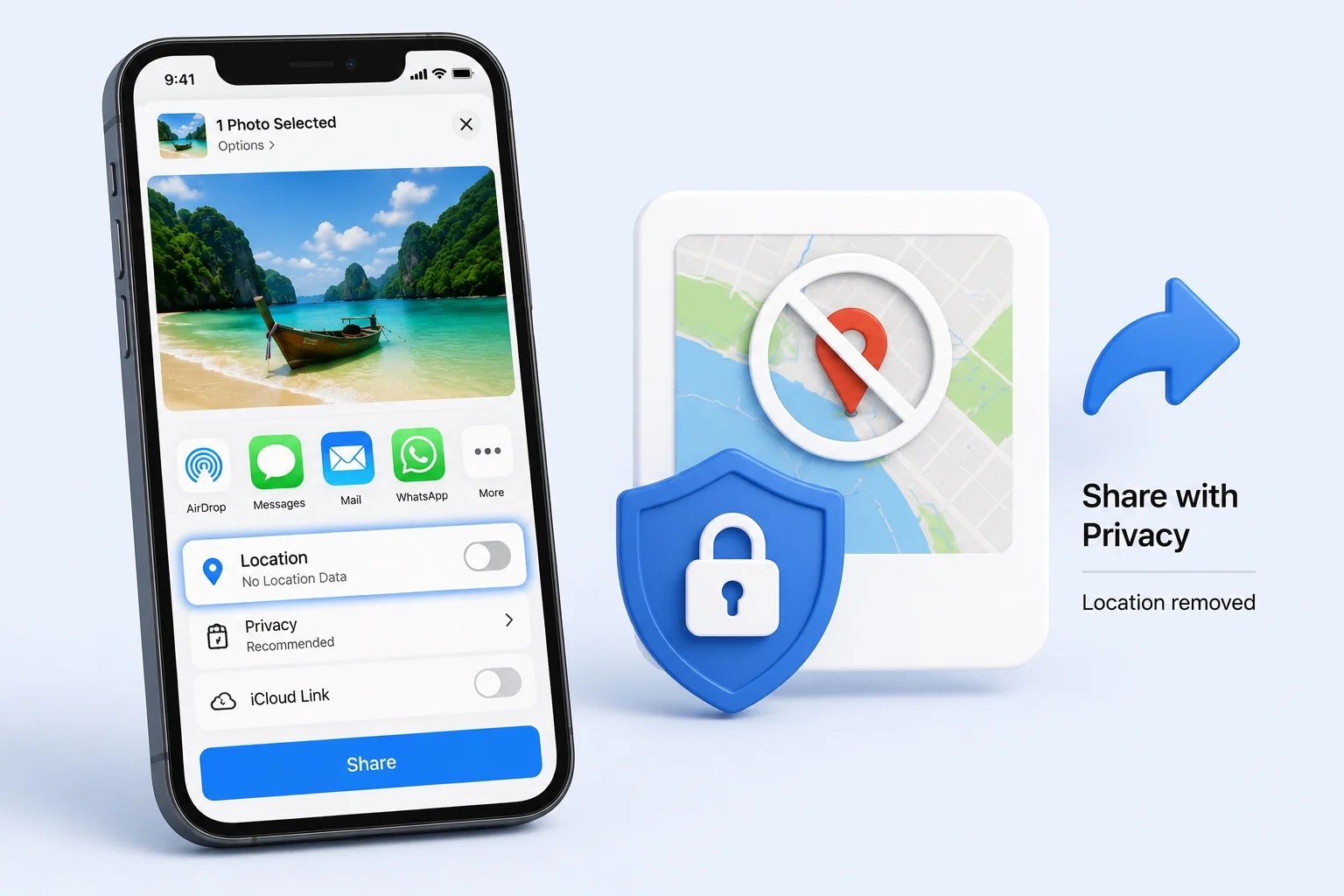
If you want more privacy, remove photo location data before sharing sensitive images.
On iPhone:
- Open the photo in Photos.
- Tap Share.
- Tap Options near the top of the share sheet.
- Turn off Location before sharing, if the option appears.
Apple allows users to manage location metadata in Photos and stop future location metadata from being collected by changing Camera location permissions.
On Samsung Galaxy:
- Open Gallery.
- Select the photo.
- Tap Share.
- Choose the option to remove location data before sending, if available.
Samsung says its Gallery sharing option can remove location data so the receiving device cannot view where the photo was captured.
On Google Photos:
Google Photos lets users add missing locations and edit or remove estimated locations. Google also says estimated locations are not shared, even when you choose to share location details.
For sensitive photos, check the image details before sending or posting them publicly.
How To Stop Your Phone From Saving Photo Location
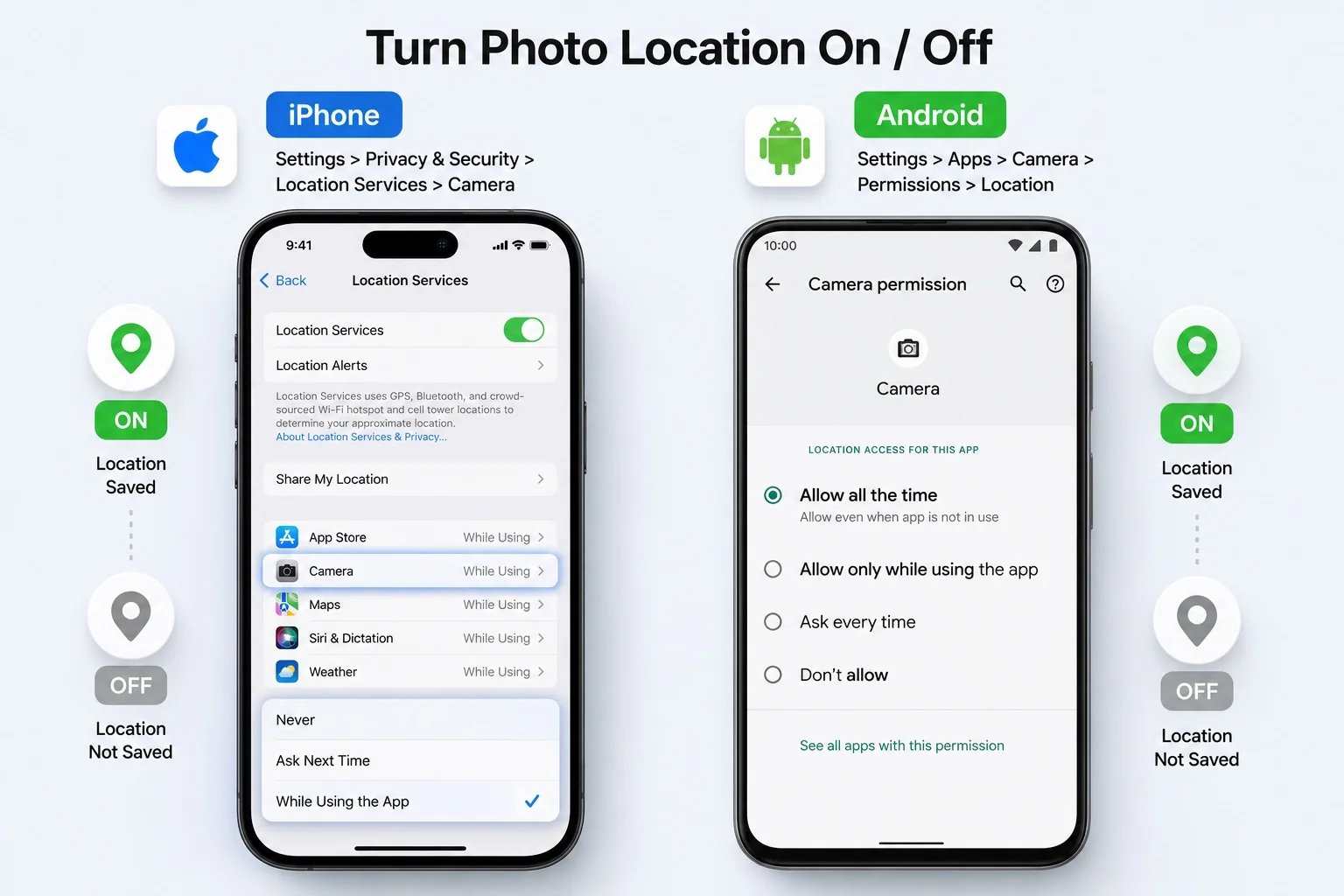
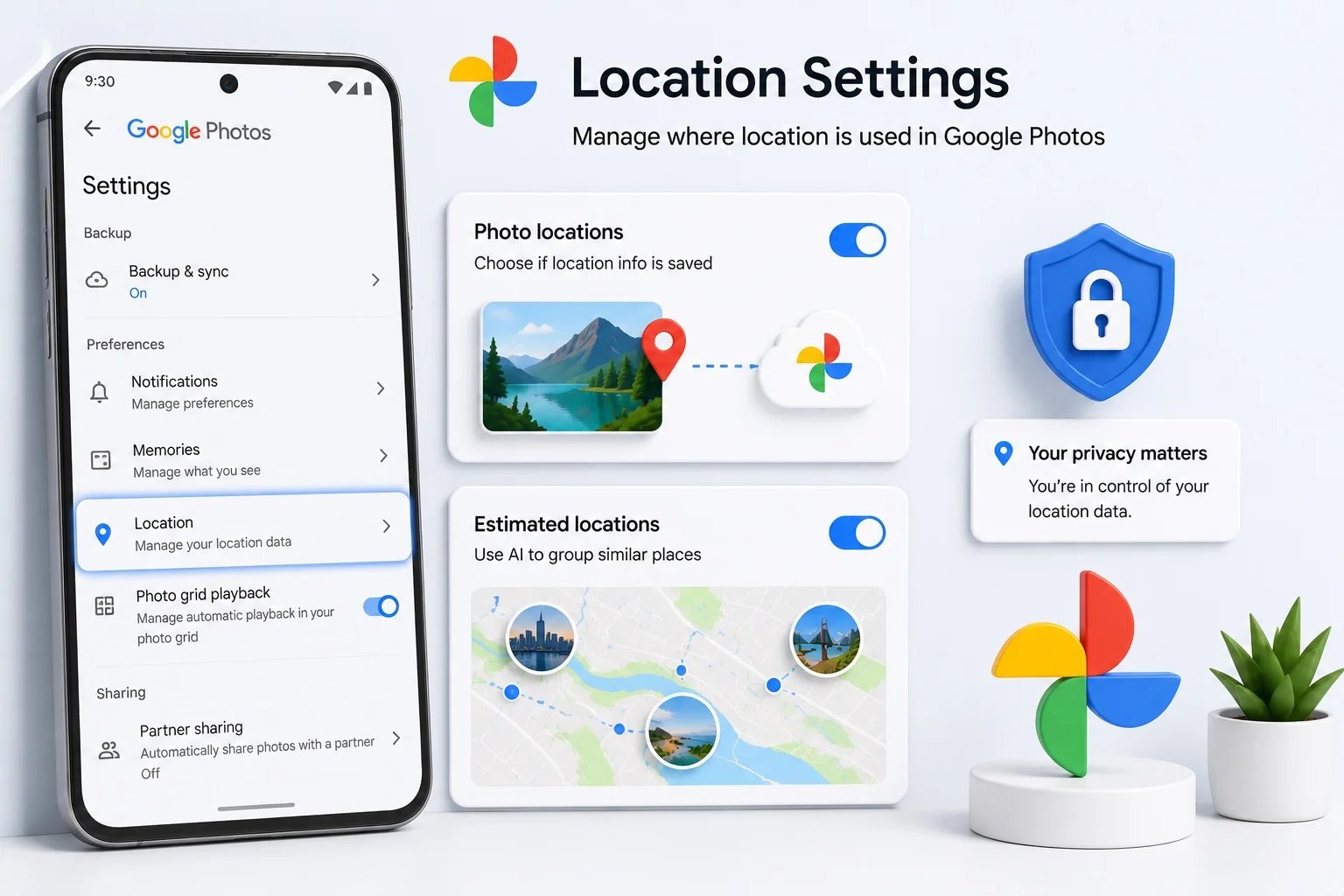
If you do not want future photos to save location data, turn off location access for your camera app.
On iPhone:
- Open Settings.
- Go to Privacy & Security.
- Tap Location Services.
- Tap Camera.
- Choose Never.
On Android:
- Open Settings.
- Go to Apps.
- Select Camera.
- Tap Permissions.
- Turn off Location permission.
Menu names may vary by Android brand, but the idea is the same: remove location permission from the camera app.
The trade-off is convenience. When photo location is turned off, your gallery may not organize new photos by city, country, landmark, or trip route. For many travelers, the better balance is to keep location tagging on for personal organization, then remove location data before sharing private photos.
Best Travel Uses For Photo Location
Photo location data is especially useful when traveling because it turns your camera roll into a memory map.
You can use it to:
- Remember where a viewpoint, café, beach, or hotel was.
- Rebuild a trip itinerary after returning home.
- Find photos from a specific city, country, or neighborhood.
- Organize albums by destination.
- Share exact places with friends.
- Check whether a downloaded image still has location data.
- Avoid sharing private locations by accident.
It can also help when planning a return trip. A random food photo in Bangkok, a beach sunset in Bali, or a viewpoint in Switzerland becomes easier to trace when your photo still has location details.
If you often rely on location tools while traveling, you may also want to read Eskimo’s guides to iPhone location history, airplane mode and location, Google Location Sharing, and offline maps.
Stay Connected While Managing Travel Photos
Checking photo locations, backing up travel memories, using Google Photos, and searching maps all work better with reliable mobile data.
An eSIM helps you stay connected without looking for a local SIM card after landing. Eskimo offers travel eSIM plans for 100+ countries, including popular destinations across Asia, Europe, and beyond. You can also get free 500MB of Global Data before your next trip.
FAQ
Can I see where any photo was taken?
No. You can only see where a photo was taken if the image still has location metadata, an estimated location, or enough visual clues to identify the place.
Do iPhone photos show location?
Yes, iPhone photos can show location if Camera had location access when the photo was taken.
Can Android photos show location?
Yes, Android photos can show location if location tagging was enabled in the camera app and the photo still contains GPS metadata.
Can Google Photos show where a picture was taken?
Yes. Google Photos can show camera location data and may also show estimated locations based on landmarks or related photo information.
Why does my photo have no location?
The photo may have been taken with location access off, shared through an app that removed metadata, edited, compressed, screenshotted, or downloaded from another source.
Can I remove location from a photo?
Yes. iPhone, Samsung Gallery, and Google Photos offer ways to manage or remove certain types of location data before sharing. The exact option depends on your device, app, and file type.
Is photo location data dangerous?
Photo location data can be sensitive. Travel photo locations are often harmless, but photos taken at home, school, work, or private places may reveal more than intended. Remove location data before sharing those photos publicly.