iPhone Battery Draining Fast
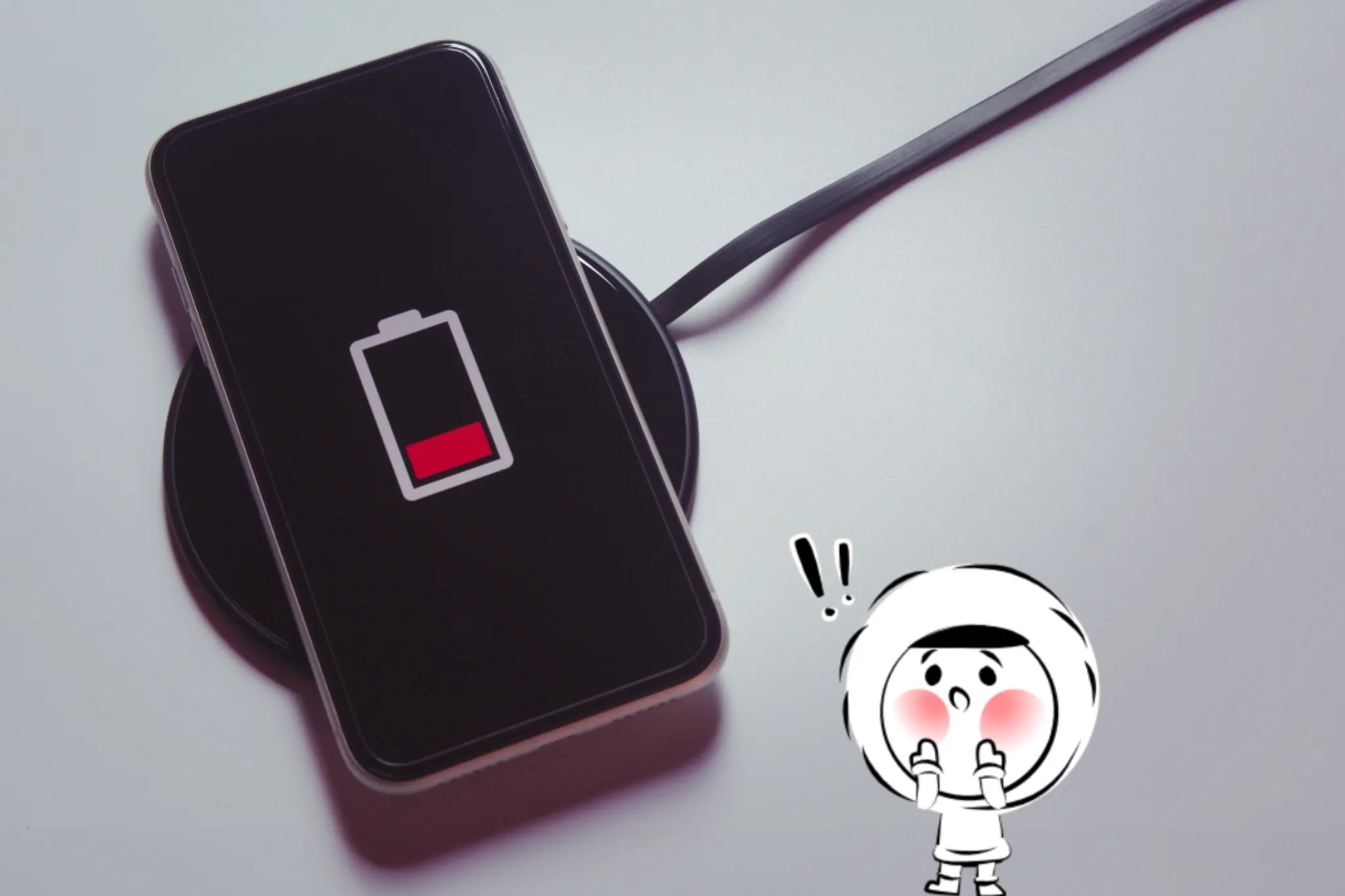
iPhone battery draining fast is usually caused by high screen brightness, background app refresh, or outdated software indexing. To fix it immediately, turn on low power mode, reduce screen brightness, and disable background app refresh in your settings. While software configurations are the most common culprits, hardware age and environmental factors also play a significant role in how long your device stays powered.
Why is my iPhone battery draining so fast?
Understanding the technical reasons for power loss helps in applying the right solution. Several background processes can exhaust your battery capacity prematurely:
- Background app refresh: Many apps, especially social media and email clients, constantly communicate with servers to fetch new data even when you are not actively using them.
- Display power consumption: High brightness levels on OLED or LCD screens require significant voltage. Keeping your display at maximum brightness is the leading cause of rapid discharge.
- iPhone location services: Apps that require constant GPS tracking, such as navigation or weather tools, frequently ping satellites and cellular towers, which is often what is draining your iPhone battery.
- System indexing: After a major iOS update, your iPhone performs background tasks like re-indexing photos and files. This temporary spike in CPU usage can lead to noticeable battery drain for 24 to 48 hours.
How to fix an iPhone battery that drains fast
To extend your daily usage, you must optimize how your device handles energy-intensive tasks. Follow these specific steps for how to save battery on iPhone:
1. Audit your battery usage
Navigate to Settings > Battery to view the "Battery Usage by App" report. This tool identifies which specific applications are consuming the most power. If an app you rarely open is responsible for a high percentage of drain, it is likely running unauthorized background processes.
2. Disable background app refresh
Go to Settings > General > background app refresh. You can disable this feature entirely or restrict it to "Wi-Fi Only." This prevents apps from waking up the processor to download content while the phone is in standby mode, significantly preserving your charge.
3. Manage iPhone location services
Visit Settings > Privacy & Security > Location Services. Instead of allowing apps to track your location "Always," change the permission to "While Using the App." This ensures that the GPS hardware only activates when the app is open and visible on your screen.
4. Optimize display settings and True Tone
Enable Auto-Brightness in Settings > Accessibility > Display & Text Size. This allows the iPhone to use its ambient light sensor to lower the screen intensity in darker environments, preventing unnecessary battery consumption from a display that is too bright for its surroundings.
Get Eskimo eSIM to stay connected globally
Need internet? Here's what we recommend:

Fixed data plans
- No speed reduction
- No expiry, keep your data forever
- Transfer data to anyone
- Personal hotspot


5. Limit push notifications
Every time a notification wakes up your screen, it consumes power. Go to Settings > Notifications and disable alerts for apps that are not essential. Reducing the frequency of screen wake-ups helps mitigate iPhone battery draining fast issues during long days of travel.
6. Adjust Mail fetch settings
If you have multiple email accounts, constant syncing can drain the battery. Go to Settings > Apps > Mail > Mail Accounts > Fetch New Data. Change the setting from "Push" to "Fetch" and select a manual interval, such as "Every Hourly," at the bottom of the screen to reduce background CPU activity.
7. Reduce Transparency and Motion
Visual effects like blur and parallax use GPU resources. Navigate to Settings > Accessibility > Motion and toggle on Reduce Motion. Then, go to Display & Text Size and toggle on Reduce Transparency. These small adjustments decrease the graphical load on your processor, saving battery life.
Other relevant iPhone battery tips
Beyond your settings, you should monitor your iPhone battery health percentage. Over time, lithium-ion batteries chemically age, reducing their ability to hold a charge. If your health is below 80%, your device may no longer support "Peak Performance Capability," which is the primary indicator for when to replace iPhone battery.
Environmental conditions also dictate performance. Lithium-ion batteries face chemical resistance in cold temperatures, which causes your iPhone to shut down or drain faster during winter travels. Conversely, high heat can lead to a swollen phone battery, posing a long-term hardware risk.
Signal strength is another overlooked factor. When you are traveling, your phone works significantly harder to search for a stable signal in areas with poor coverage. This constant searching for a cellular network uses more power than any other background task. Staying connected via a reliable data source can prevent your device from overworking its internal radio.
Conclusion
Managing an iPhone battery draining fast requires a combination of smart software habits and hardware awareness. By optimizing your background app refresh and monitoring your iPhone battery health percentage, you can ensure your device remains reliable throughout the day.
For travelers, maintaining a stable internet connection is key to preventing battery drain caused by weak signals. To ensure a seamless experience without the power-intensive search for local networks, consider using Eskimo.
Eskimo provides reliable Global data plans that keep your device connected efficiently. Get started today and get a free 500MB global data trial to test our service anywhere in the world.
FAQ
Does Always-On Display drain battery?
Yes, the Always-On Display keeps the screen active at a low refresh rate. While iOS optimizes this, turning it off will provide a measurable boost to battery life.
Should I close all my apps to save battery?
No. iOS is designed to "freeze" apps in the background. Force-closing them requires the CPU to use more energy to reload the app from scratch.
What is draining my iPhone battery?
The most frequent causes are high screen brightness, constant iPhone location services pings, and excessive activity from background app refresh apps.