What Is Apple Live Listen? How It Turns Your iPhone Into a Remote Microphone
Apple Live Listen is a hearing accessibility feature that turns your iPhone or iPad into a remote microphone, streaming audio directly to your AirPods, Beats, or Made for iPhone (MFi) hearing devices. By capturing sound through your iOS device’s microphone and relaying it in real-time to your ears, Live Listen helps you hear conversations more clearly in noisy environments or when someone is speaking from across a room.
While it sounds technical, the concept is simple: instead of relying on the tiny microphones built into your earbuds, you place your iPhone closer to the sound source. This effectively reduces background interference and brings the speaker's voice directly into your ears without the need for expensive, specialized equipment.
What Apple Live Listen Actually Does
Live Listen utilizes the high-quality microphone on your iPhone or iPad to capture nearby audio and transmit it to a supported listening device.
- iPhone as the Transmitter: Your device acts as the "ears" placed near the speaker.
- AirPods/Beats as the Receiver: The audio is streamed via Bluetooth to your headphones.
- Who Can Use It: It is available for anyone with an iPhone/iPad and compatible hardware, categorized under Apple’s hearing accessibility suite.
How Live Listen Works With AirPods and Beats
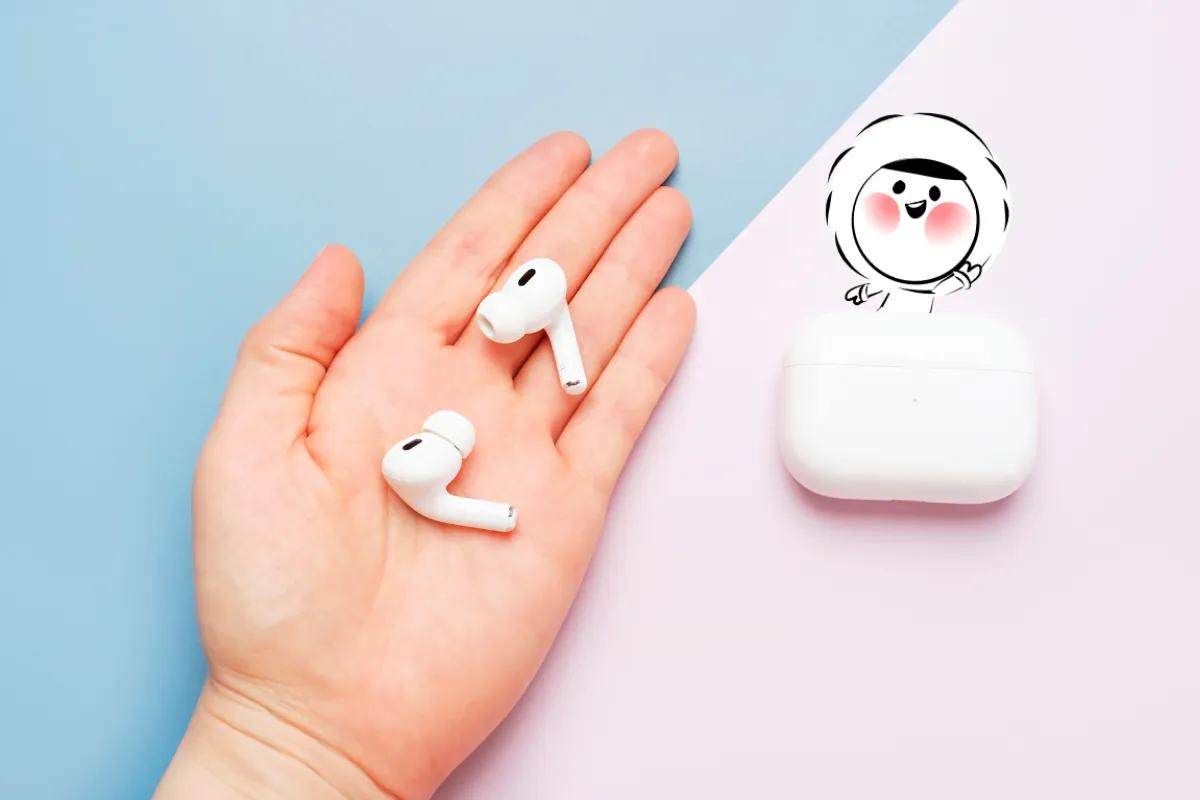
In a typical setup, your AirPods stay in your ears while your iPhone sits closer to the voice or sound source. This feature is supported by the following models:
- AirPods: All generations of AirPods Pro, AirPods Max, and standard AirPods.
- Beats: Powerbeats Pro, Beats Fit Pro, and Powerbeats.
- MFi Devices: Hearing aids specifically certified by Apple.
In the latest iOS 26 updates, Live Listen has become even more powerful by complementing Apple’s Live Translation feature. This allows you to not only hear a speaker across a room but also receive real-time translations directly in your AirPods, a complete game-changer for international travelers navigating foreign languages in real-time.
Apple Watch Integration
While the Apple Watch cannot act as the primary microphone source, it plays a vital support role. You can use your Apple Watch to start, stop, or monitor the volume levels of a Live Listen session running on your paired iPhone, allowing for discreet control during meetings or dinners.
When Apple Live Listen Is Actually Useful
This feature is most effective when distance or ambient noise creates a barrier to clear communication:
- Noisy Restaurants and Cafés: Place your iPhone on the table to hear your dinner companion clearly over the background clatter.
- Classrooms or Lectures: Position your device near the speaker or lecturer to hear them directly in your ears, even if you are seated at the back.
- Travel Situations: Hear gate announcements at a loud airport or follow a tour guide’s explanation in a crowded museum without needing to stand right next to them.
Get Eskimo eSIM to stay connected globally
Need internet while travelling? Here's what we recommend:

Fixed data plans
- No speed reduction
- No expiry, keep your data forever
- Transfer data to anyone
- Personal hotspot


How to Turn On Live Listen (Step-by-Step)
Setting up Live Listen is straightforward, but the controls are tucked away in the Accessibility settings.
- Add to Control Center: Go to Settings > Control Center. Find the Hearing icon (the ear symbol) and tap the plus (+) icon to add it.
- Connect Your Earbuds: Ensure your AirPods or Beats are connected and in your ears.
- Start the Session: Swipe to open Control Center, tap the Hearing icon, and then tap Live Listen.
- Position Your Device: Place your iPhone or iPad near the person you want to hear.
- Adjust Volume: Use the volume buttons on your iPhone to find the perfect level.
Pro Tip: Because Live Listen keeps the microphone active and streams audio continuously via Bluetooth, it will drain the battery of both your iPhone and your earbuds faster than normal. Ensure both are well-charged before a long session.
Apple Live Listen vs. Live Captions
While both features assist with communication, they solve different problems:
- Live Listen (Audio Focus): Streams clear, amplified sound to your ears. Best for hearing speech in real-time.
- Live Captions (Text Focus): Provides a real-time text transcription of spoken audio on your screen. Best for reading along or for those with severe hearing loss.
- Combined Use: You can use both simultaneously to get the benefit of clearer audio while seeing a text backup on your screen.
Is Apple Live Listen a Hearing Aid Replacement?
It is important to distinguish between accessibility features and medical devices.
Apple presents Live Listen as a hearing support tool for specific situations. However, it is worth noting that AirPods Pro 2 and AirPods Pro 3 has recently received FDA clearance for clinical-grade "Hearing Aid Feature" capabilities in certain regions. While Live Listen is a powerful tool for amplification, users with chronic hearing loss should consult a medical professional for long-term solutions.
Best Situations to Use Live Listen While Traveling
For travelers, Live Listen is a "hidden gem" that makes navigating foreign environments much easier:
- Airports & Transit Hubs: Filter out the echo of large terminals to hear boarding calls or gate agents.
- Guided Tours: Follow the guide’s voice clearly, even if you step away to take a photo.
- Shared Spaces: Hear conversations across a hotel lobby or shared lounge without having to move closer.
Using features like Live Listen while exploring new destinations requires a reliable connection for your travel apps and maps. With Eskimo, you can stay connected globally without the hassle of physical SIM cards. New users can even start with a free 500MB global data trial to keep their journey seamless.
FAQs
How far away can I place my iPhone for Live Listen?
It depends on the Bluetooth range, which is typically 33 to 60 feet (10–20 meters). Physical barriers like thick walls may reduce this range.
Does Live Listen work with non-Apple headphones?
No. Live Listen is strictly compatible with AirPods, Beats, and MFi-certified hearing devices.
Can I record the audio from a Live Listen session?
No, Live Listen is designed for real-time streaming only and does not have a built-in recording feature.
Does it work on Android?
No, this is an exclusive feature of the Apple ecosystem (iOS and iPadOS).
Can the Apple Watch use Live Listen?
Apple Watch can control a Live Listen session running on your nearby paired iPhone, but it is not the main microphone source.
Is Live Listen the same as Live Captions?
No. Live Listen streams audio to your ears, while Live Captions turns spoken audio into real-time text on screen.
Does Live Listen use more battery?
Apple’s support page says your headphones need to be charged, and Bluetooth must be on for Live Listen to work properly. In practical use, keeping the microphone active and streaming audio continuously can use more battery than ordinary listening. The charge requirement is directly supported by Apple; the battery-use point is a practical inference.