
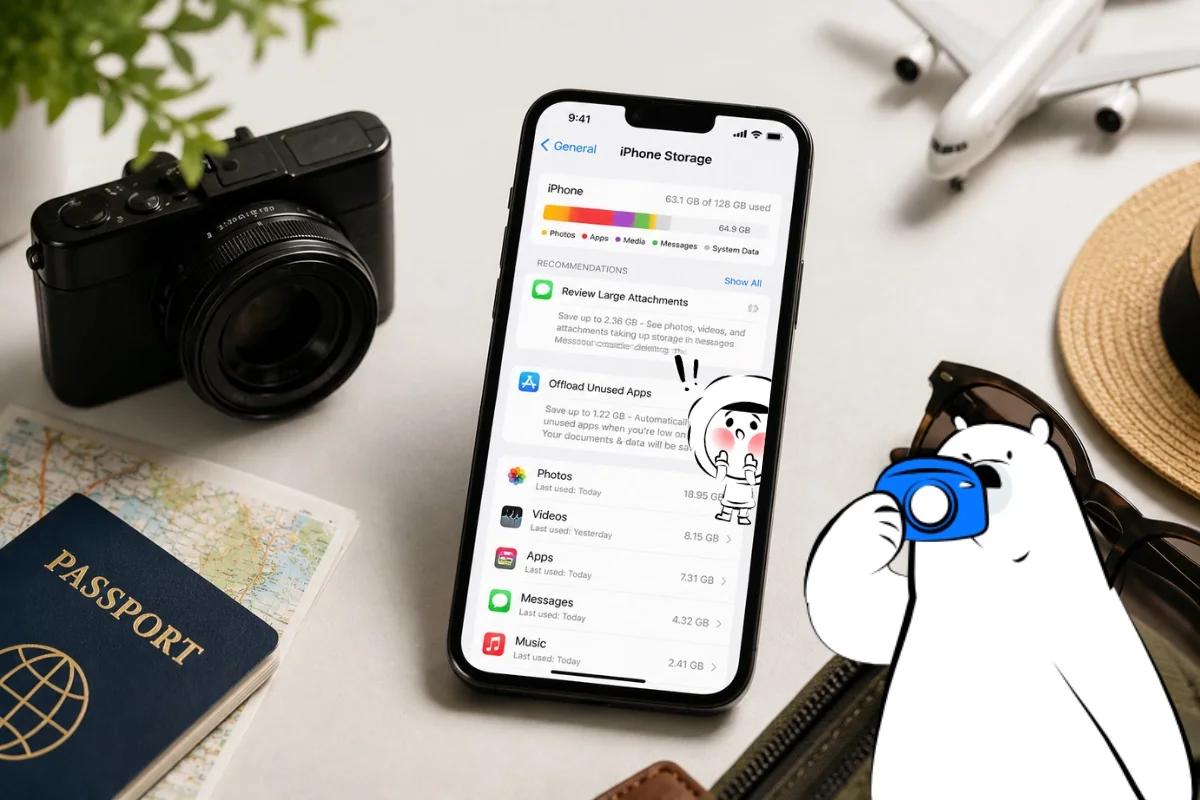
The fastest way to free up space on iPhone before traveling is to delete large videos, clear app cache, offload unused apps, and remove old downloads. Do it before you leave, so your phone has room for new photos, videos, boarding passes, maps, and travel apps.
Quick storage fixes before traveling:
- Too many photos: Delete duplicates, blurry shots, and screenshots.
- Large videos: Remove old clips, screen recordings, and videos already backed up.
- App clutter: Offload apps you will not use during the trip.
- Cache: Clear Safari history and app storage where available.
- Downloads: Delete offline movies, podcasts, old maps, and saved files.
Check iPhone Storage First
Go to Settings > General > iPhone Storage.
Your iPhone will show what takes up the most space. Start with the largest items first. Videos, messaging apps, and downloaded files usually free up more space than deleting small apps one by one.
For iCloud cleanup, check your cloud storage separately before deleting anything important.
Delete Photos And Videos You Do Not Need
Open Photos and remove anything you no longer need, such as blurry photos, duplicate shots, screenshots, screen recordings, and large videos.
Then open Recently Deleted and clear it. Deleted photos still use storage until they are removed from that folder.
Clear iPhone Cache

To clear iPhone cache in Safari, go to:
Settings > Apps > Safari > Clear History and Website Data
For apps like social media, shopping, streaming, and travel apps, check their in-app storage settings. Some apps let you clear cache or delete downloads. If not, deleting and reinstalling the app may help, but only do this if your data is backed up and you know your login details.
Get Eskimo eSIM to stay connected globally
Need internet while travelling? Here's what we recommend:

Fixed data plans
- No speed reduction
- No expiry, keep your data forever
- Transfer data to anyone
- Personal hotspot


Offload Unused Apps

Use Offload App for apps you will not need while traveling.
Go to Settings > General > iPhone Storage, choose an app, then tap Offload App.
This removes the app but keeps its documents and data. Keep essential apps installed, such as maps, airline apps, hotel apps, banking apps, messaging apps, and your eSIM app.
Remove Old Downloads
Downloads can quietly fill your iPhone. Check streaming apps, podcast apps, offline maps, email attachments, PDFs, and messaging app media.
Keep only what you need for the journey. Old videos, playlists, and saved maps can take up more space than expected.
Make Room For More Travel Memories
A cleaner iPhone gives you more space for the moments you actually want to keep. Mobile data can also help you upload photos during your trip, so your storage is not carrying everything alone.
Eskimo offers a Global Plan for travelers visiting multiple destinations. Its fixed data plans come with up to 2-year validity and unlimited rollover, so unused data can stay useful for future trips. New Eskimo users can also claim free 500MB of Global Data to try Eskimo before their next trip.
For setup before departure, see the iPhone eSIM guide.
FAQs
How Much Free Space Should I Have Before Traveling?
Try to keep at least 10GB to 20GB free, especially if you plan to take many photos or videos.
What Is The Fastest Way To Free Up iPhone Storage?
Delete large videos, clear Recently Deleted, remove downloads, and offload unused apps. These usually free up space faster than deleting small files.
Does Clearing Cache Delete My Photos?
No. Clearing Safari cache does not delete your photos. Be careful when deleting or reinstalling apps, because some app data may be removed.
Should I Use iCloud To Save iPhone Storage?
Yes, but make sure your photos are fully synced before deleting anything from your iPhone.