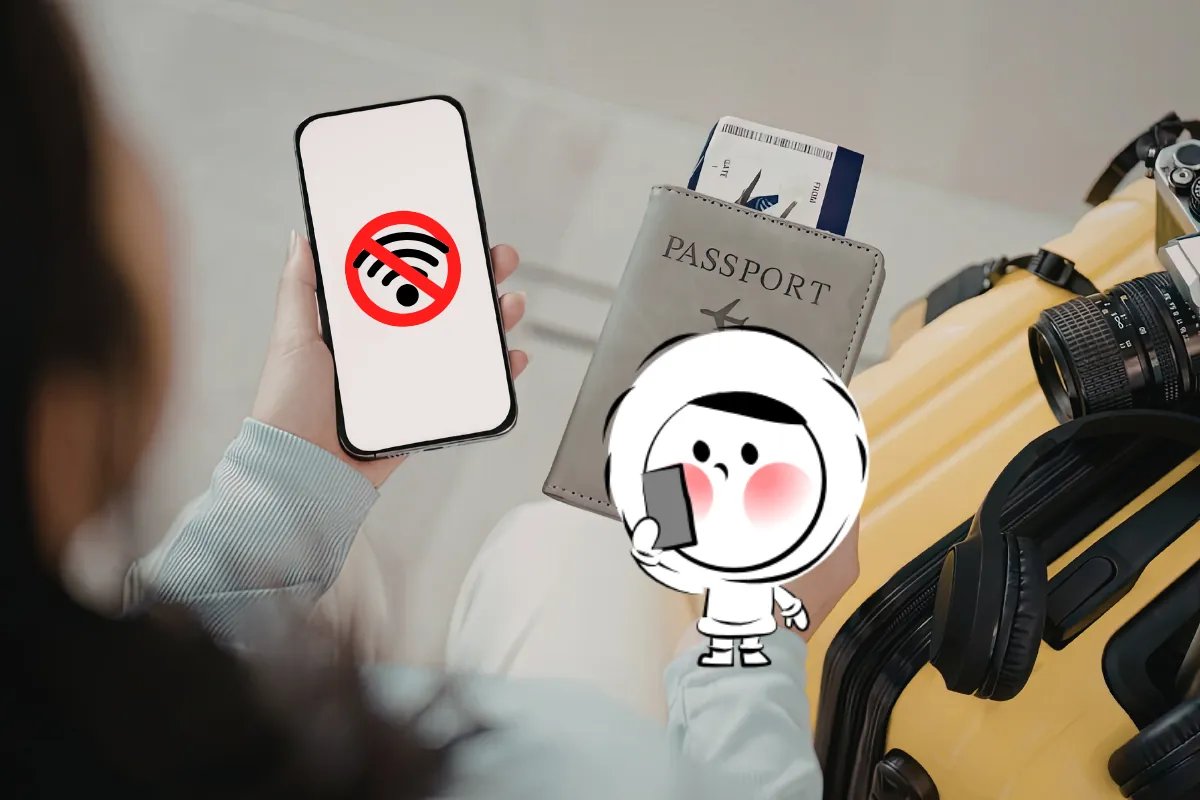
Landing in a new country is usually the moment you want everything to work immediately. You turn off airplane mode, reach for your phone… and nothing loads.
No signal. No service. No internet.
If this happens to you, it does not mean your phone is broken. In most cases, it is simply part of the transition that happens when your device moves from one country’s network to another.
The good news is that these issues are common and usually easy to fix once you know what is happening.
Why This Happens Right After You Arrive
When you cross a border, your phone has to do a lot in the background.
It needs to leave your home carrier, register with a local partner network, and apply the correct mobile data permissions. Sometimes it also needs to activate a new SIM or eSIM profile.
That short adjustment period is why connection problems often appear right after landing, even if everything worked perfectly before takeoff. And because the first hour abroad depends on being online for maps, transport, messaging, and bookings, even a small delay can feel stressful.
The Most Common Reasons You Have No Internet After Landing
1. Data Roaming Is Turned Off
One of the most common causes is simple: roaming is disabled.
Many phones keep data roaming turned off by default to avoid unexpected charges. Depending on your plan, roaming may need to be enabled for mobile data to work abroad.
To check this on an iPhone:
- Open the Settings app
- Tap Cellular (or Mobile Data)
- Tap Cellular Data Options
- Find Data Roaming
- Switch it On
On Android, the wording may vary slightly, but it is usually under:
- Open Settings
- Tap Network & Internet (or Connections)
- Tap Mobile Network or SIMs
- Find Roaming or Data Roaming
- Switch it On
If it is turned off, switching it on may allow your travel plan to connect properly.
2. Your Phone Is Using the Wrong SIM for Mobile Data
If your phone supports dual SIM, this is easy to miss. You might have your travel eSIM installed correctly, but your phone may still be trying to use your home SIM for mobile data.
Take a moment to open your cellular settings and look at which line is selected under Mobile Data.
On iPhone:
- Open Settings
- Tap Cellular
- Tap Cellular Data
- Select your travel eSIM as the data line
On Android:
- Open Settings
- Tap Connections (or Network & Internet)
- Tap SIM Manager
- Tap Mobile Data
- Select your travel eSIM as the data SIM
If the wrong SIM is chosen, switching to the travel eSIM often restores your connection immediately.
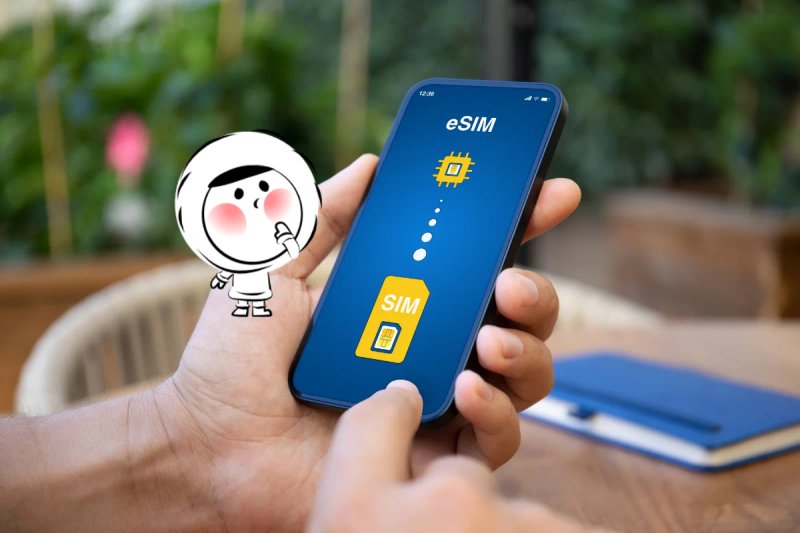
3. Your eSIM Has Not Been Activated Yet
Sometimes an eSIM is installed, but it has not fully activated after arrival.
This can happen if the plan only starts once you connect to a supported network, or if your phone has not refreshed its connection since leaving airplane mode.
A simple reset usually helps:
- Turn Airplane Mode On
- Wait about 5–10 seconds
- Turn Airplane Mode Off
- Wait 30 seconds for the network to reconnect
If that does not work, restart your phone. Once the device reconnects to the local network, the eSIM often activates automatically.
Get Eskimo eSIM to stay connected globally
Need internet while travelling? Here's what we recommend:

Fixed data plans
- No speed reduction
- No expiry, keep your data forever
- Transfer data to anyone
- Personal hotspot


4. Network Selection Did Not Update Automatically
Most phones automatically connect to the best available carrier, but that does not always happen right away.
This is especially common in airports, where several networks overlap.
If you have signal bars but no working data, try selecting a network manually.
On iPhone:
- Open Settings
- Tap Cellular
- Tap Network Selection
- Turn off Automatic
- Choose a local operator from the list
On Android:
- Open Settings
- Tap Network & Internet
- Tap Mobile Network
- Tap Network Operators
- Turn off Automatically Select Network
- Choose a local operator
This often resolves connection issues within minutes.
5. APN Settings Are Missing or Incorrect
In rare cases, the issue comes from APN settings not updating properly when switching countries. APN-related connection issues tend to appear more often on Android devices, since settings can vary depending on the phone brand and carrier.
Most travelers never need to touch these settings, but if your phone shows a signal and nothing loads at all, resetting network settings can help:
- Open Settings
- Go to Mobile Network or Cellular Data Options
- Look for Access Point Names (APN)
- Reset to default or follow your provider’s instructions
- Restart your phone afterward
This is usually a last step, not the first.
6. Airport Wi-Fi Interference or Weak Signal
Airports feel like they should be the easiest place to connect, but they are often overloaded. Wi-Fi networks can be crowded, and the mobile signal can be weaker inside terminals.
Sometimes, simply walking to a different area, stepping outside, or restarting your connection is enough to get service working again.
Quick Fix Checklist (5 Minutes After Landing)
If you want the fastest way to get connected, start simple.
First, toggle airplane mode on and off. This forces your phone to reconnect.
Next, restart your phone. Many travel connectivity issues are resolved after a reboot.
Then check two key settings:
- Is roaming enabled if your plan requires it?
- Is the correct SIM or eSIM selected for mobile data?
If you still have no internet, try choosing a network manually, especially if you are still inside the airport.
Only in rare cases will you need to reset network settings completely.
How to Avoid Losing Internet on Your Next Trip
The easiest way to avoid arrival-day stress is to prepare before you fly.
Many travelers rely on airport Wi-Fi or assume they will buy a SIM after landing, but that often leads to delays when you need internet the most.
Using an eSIM is one of the simplest ways to stay connected immediately.
With Eskimo, travel connectivity is designed to be flexible:
- Fixed data plans stay valid for up to two years
- Unused data can roll over when you purchase a new plan later
- You install one eSIM once, and use it across destinations without swapping SIM cards
- Plans activate only when you connect in a supported country
- Fixed plans come with no daily speed limits
- Paid data can be shared with other Eskimo members using a mobile number
That means you can prepare early, connect as soon as you land, and keep leftover data for future trips. Claim your free global eSIM now!
The Bottom Line
If you have no internet after landing abroad, the cause is usually something simple: roaming settings, SIM selection, activation delay, or network registration.
Most of these issues are normal, and they are fixable quickly.
What matters most is having reliable mobile data when you need it most, especially during arrival, transit, and movement between destinations.
FAQs
Why does my phone have signal but no internet abroad?
This often happens when your phone connects to a network, but mobile data settings such as roaming, SIM selection, or APN are not correctly applied.
Do I need to turn roaming on for an eSIM?
In many cases, yes. Some travel eSIM plans require roaming to connect to partner networks abroad.
What is the fastest way to get internet after landing?
The fastest option is preparing in advance with an eSIM, so you can connect immediately without searching for a SIM shop or depending on airport Wi-Fi.