
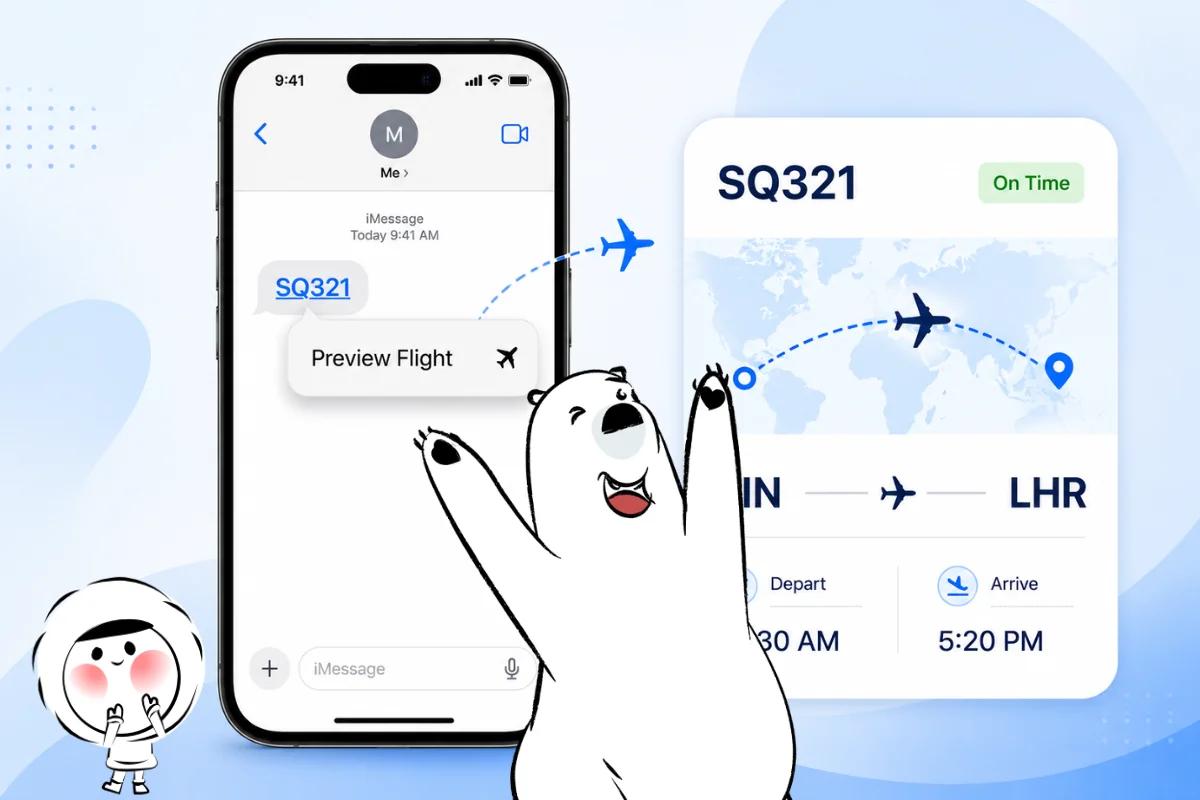
You can track flights on iPhone without downloading a flight tracker app by using iMessage or Spotlight Search. The easiest method is to type or receive a flight number, such as SQ321, UA1111, or BA16. When your iPhone recognizes it, tap the flight number and select Preview Flight to see available details such as flight status, departure time, arrival time, airport information, and route progress.
This is useful when you want a quick flight status check, when someone is picking you up, or when you need to share flight details with another person.
For a fuller step-by-step guide to flight numbers, live maps, airline apps, delays, and flight alerts, read our guide on how to use a flight tracker.
| Method | Best For | How It Works |
| iMessage | Sharing flight details with someone | Send the flight number, tap it, then choose Preview Flight |
| Spotlight Search | Checking a flight privately | Swipe down on the Home Screen and type the flight number |
How To Track A Flight On iPhone Using iMessage
The iPhone flight preview works directly inside the Messages app. You do not need to download a separate flight tracker app.
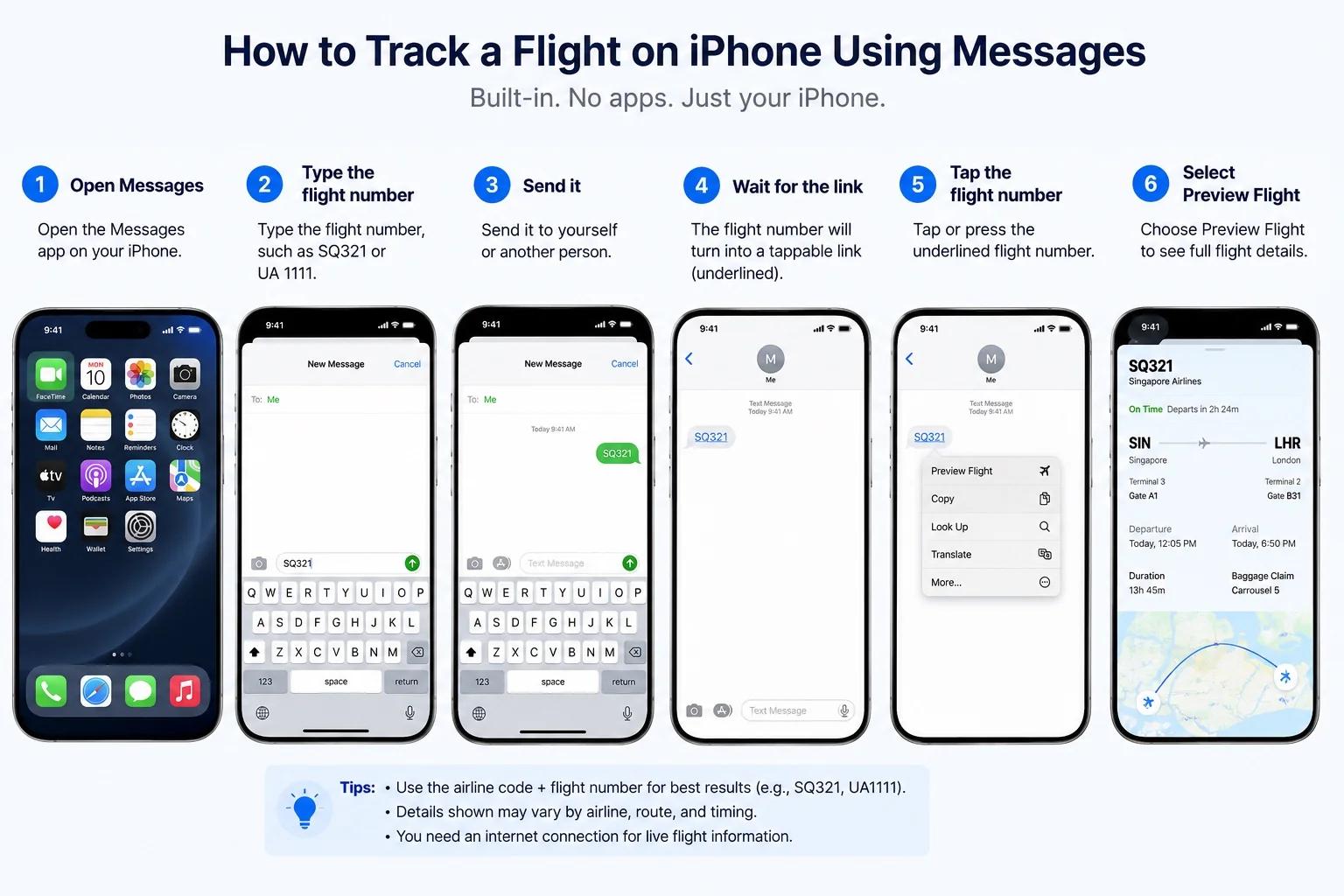
To track a flight using iMessage:
- Open Messages on your iPhone.
- Type the flight number, such as SQ321 or UA 1111.
- Send it to yourself or another person.
- Wait for the flight number to appear as a tappable link.
- Tap or press the flight number.
- Select Preview Flight.
Your iPhone should open a flight card with the latest available details. Depending on the flight, this may include departure time, arrival time, flight status, airports, terminals, gates, and a simple route map.
This method is especially useful when you are sharing a flight with someone who is picking you up. They can tap the same flight number in Messages and check the latest estimated arrival without asking you for repeated updates.
For smoother airport prep, keep your flight details, travel documents, charger, and mobile data ready before you leave. You can also read The Ultimate Airport Survival Guide: Smart Hacks and Essentials for practical airport tips.
How To Track Flights On iPhone Using Spotlight
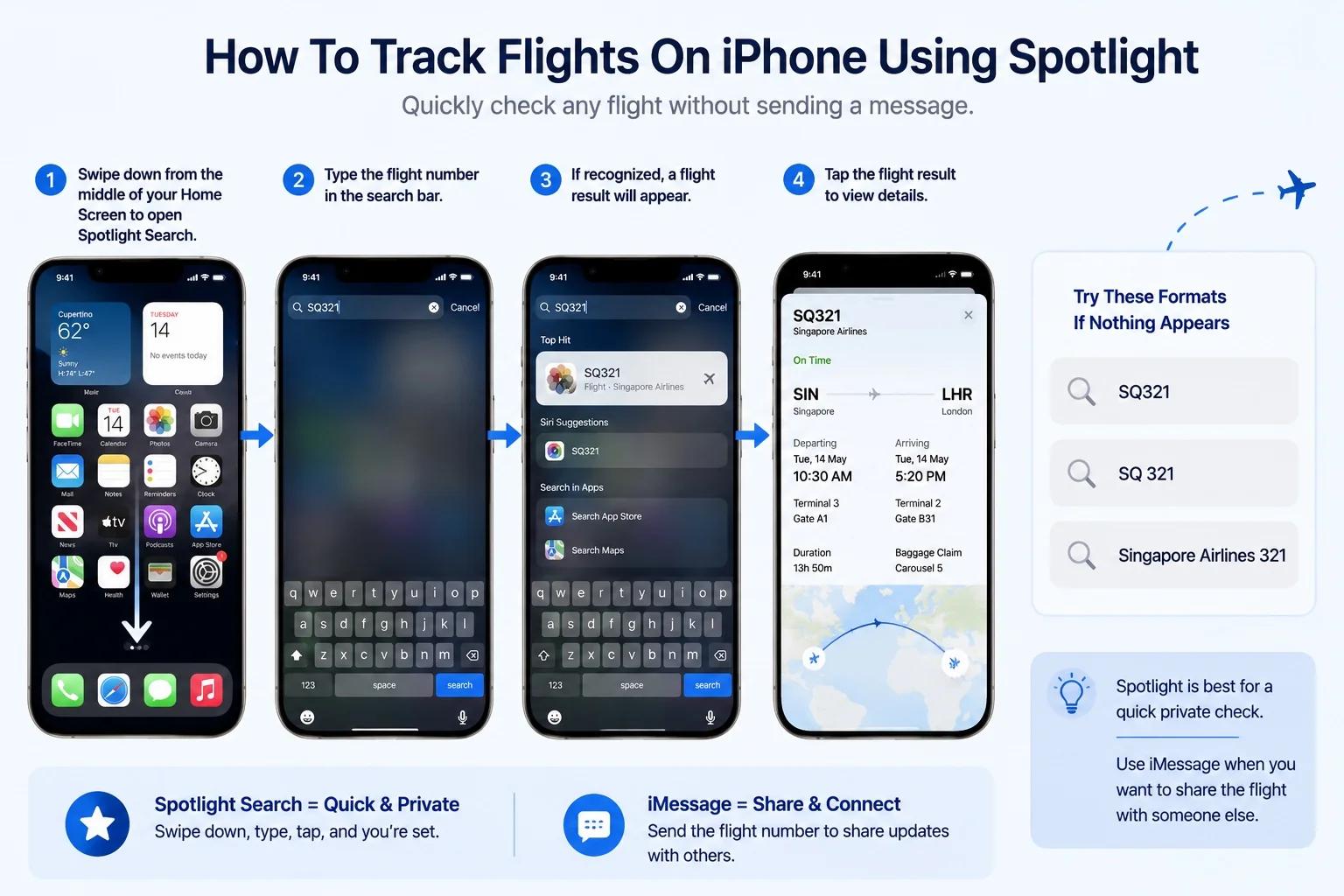
You can also check a flight on iPhone without sending it in Messages.
Swipe down from the middle of your iPhone Home Screen to open Spotlight Search. Type the flight number into the search bar. If your iPhone recognizes the flight, a flight result should appear. Tap it to view the available details.
Try a few formats if nothing appears right away:
- SQ321
- SQ 321
- Singapore Airlines 321
Spotlight is best when you only need a quick private check. iMessage is better when you want to share the flight number with someone else.
What Flight Number Format Works Best On iPhone?
The best format is usually the airline code plus flight number.
Examples include:
- SQ321
- SQ 321
- UA1111
- BA16
- EK204
If the short airline code does not work, try typing the full airline name with the flight number, such as Singapore Airlines 321 or British Airways 16.
Flight numbers can sometimes be confusing because of codeshare flights. A codeshare flight is sold by one airline but operated by another. If the flight number on your ticket does not work, check your booking for the operating airline and try that flight number instead.
What You Can See In iPhone’s Flight Preview
When the flight number works, iPhone can show a compact flight card with useful travel details. The exact information can vary by airline, airport, route, and timing.
You may see:
- Flight status
- Departure time
- Arrival time
- Departure airport
- Arrival airport
- Terminal details
- Gate details
- Baggage claim information
- Route map
The feature is convenient, but it should not be your only source for urgent travel decisions. Gate changes, delays, cancellations, and baggage information can update at different times across iPhone flight preview, airline apps, airport screens, and official airport systems.
Get Eskimo eSIM to stay connected globally
Need internet while travelling? Here's what we recommend:

Fixed data plans
- No speed reduction
- No expiry, keep your data forever
- Transfer data to anyone
- Personal hotspot


iPhone Flight Preview Vs A Flight Tracker App
iPhone’s built-in flight preview is best for quick checks. It is fast, simple, and does not require another app.
Use iPhone flight preview when you want to:
- Check a flight number quickly
- Share flight details in Messages
- See basic departure and arrival details
- Track someone’s arrival before airport pickup
- Avoid downloading another app
A dedicated flight tracker app is usually better when you want:
- Push notifications
- More detailed live maps
- Aircraft information
- Airport delay information
- Historical flight data
- Frequent updates across multiple flights
For most travelers, iPhone flight preview is enough for a quick status check. If you are managing a tight connection, tracking several flights, or monitoring delays closely, a full flight tracker app or airline app may be more reliable.
Can You Track Someone Else’s Flight On iPhone?
Yes. You can track someone else’s flight on iPhone if you have their flight number.
Ask them to send the airline code and flight number through Messages. When the number appears as a tappable link, tap it and select Preview Flight. This lets you check the latest available status and estimated arrival time.
If you are picking someone up from the airport, check the flight more than once:
- Before leaving home
- While heading to the airport
- When the flight is close to landing
- After the aircraft has landed
A flight preview can tell you when the aircraft lands, but it cannot always tell you when the passenger will exit the airport. Immigration, baggage claim, and airport layout can still affect pickup timing.
Why Your iPhone Flight Tracker Might Not Work
If the flight number does not become clickable, your iPhone may not recognize the format, the flight may not be current, or the data may not be available yet.
Try these quick fixes:
- Use the airline code and flight number
- Add a space between the airline code and number
- Type the full airline name with the flight number
- Check that the flight is current or upcoming
- Try the operating airline number for codeshare flights
- Reopen Messages or Spotlight
- Make sure your iPhone has internet access
- Update iOS if the feature keeps failing
A flight may also appear without full details. Some airport and route information is only available closer to departure or after the airline updates its system.
Why iPhone Flight Details Can Differ From Airline Apps
iPhone flight preview, airline apps, airport screens, and flight tracking platforms may not always show the exact same information at the same time. Each source may update from different systems or refresh at a different speed.
This is most common with:
- Gate changes
- Terminal updates
- Delay estimates
- Arrival time adjustments
- Baggage claim details
If the information affects check-in, boarding, pickup timing, or a connecting flight, confirm it with the airline app, airport screens, or airport staff.
Keep Flight Checks Easy When You Land
An iPhone flight preview is most useful when your phone is already online. Before a trip, set up mobile data so you can check flight changes, message your pickup contact, open maps, and review airport details without hunting for Wi-Fi.
Eskimo’s Global Plan is useful for travelers visiting multiple destinations because one eSIM can keep working across supported countries. Its 2-year data validity is also helpful for occasional trips, since unused data can stay ready for future travel.
New Eskimo users can also get free 500MB of Global Data. It is useful for light travel tasks such as checking flight status, opening maps, and sending arrival updates.
FAQs
Can I track flights on iPhone without an app?
Yes. You can track flights on iPhone without an app by typing a flight number in iMessage or Spotlight Search. Tap the recognized flight number, then choose Preview Flight.
How do I track a flight on iPhone iMessage?
Open Messages, send the airline code and flight number, then tap the underlined flight number. Select Preview Flight to see the available flight details.
Why is my flight number not clickable on iPhone?
Your iPhone may not recognize the format. Try the airline code with the number, add a space, or use the full airline name. The feature may also work better for current or upcoming flights.
Can I use Spotlight to track flights on iPhone?
Yes. Swipe down from the Home Screen, type the flight number, and tap the flight result if it appears.
Does iPhone flight tracking work offline?
No. You need internet access to see live or updated flight details, including timing changes, route progress, and airport information.
Can I track someone else’s flight on iPhone?
Yes. Ask them to send you the flight number, then tap the number in Messages and choose Preview Flight. This is useful when you are picking someone up from the airport.
Is iPhone flight preview better than a flight tracker app?
iPhone flight preview is better for quick checks. A dedicated flight tracker app is better for alerts, detailed maps, aircraft information, and tracking multiple flights.
Does iPhone flight preview show gate changes?
Sometimes. Gate and terminal details may appear when available, but they can change quickly. For urgent updates, check the airline app or airport screens.