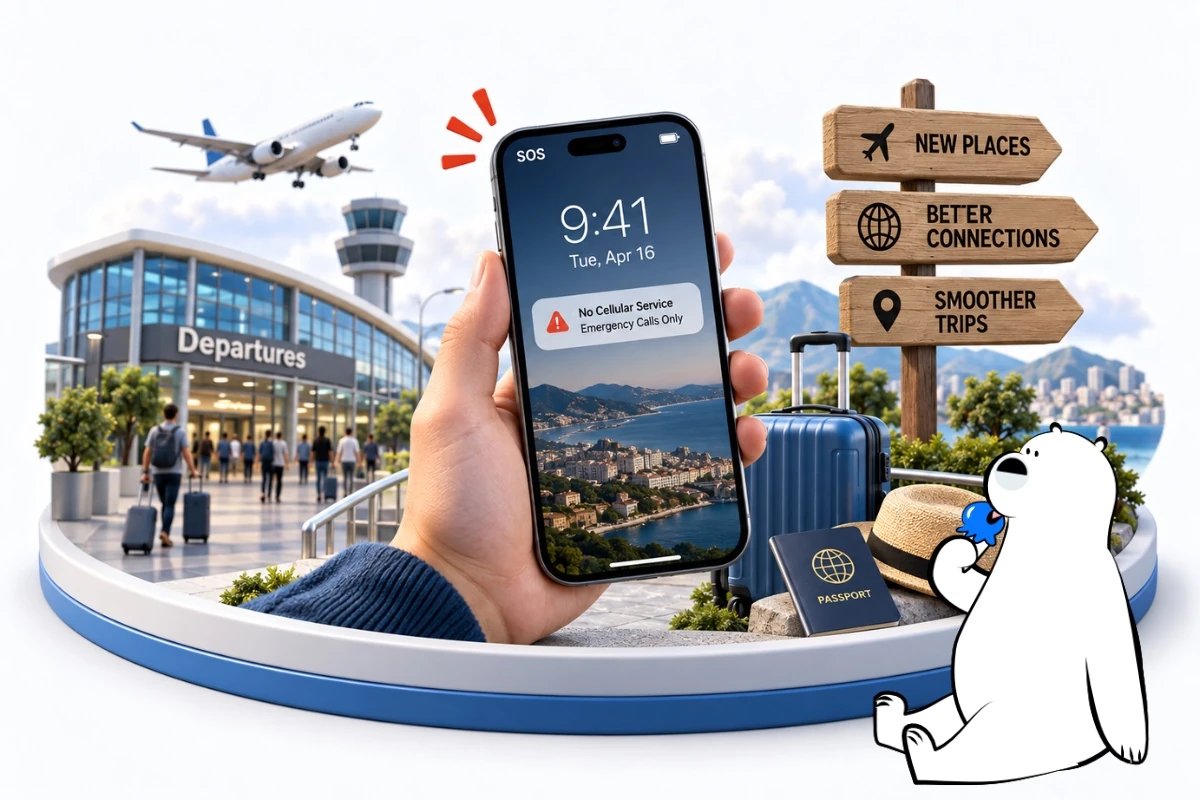
If your phone says SOS, your iPhone usually cannot connect normally to your cellular carrier. Where supported, you may still be able to make emergency calls through another available network, but normal calls, texts, and mobile data through your carrier may not work.
Weak coverage, a carrier outage, SIM or eSIM problems, account issues, and failure to register with a network can all cause SOS to appear.
If it happens while traveling, do not immediately assume you need another SIM. First determine whether you have a genuine coverage problem or whether your home carrier simply cannot connect in the destination. A travel eSIM can help with some carrier and roaming problems, but it cannot create signal where no usable cellular network exists.
What SOS Means on iPhone
SOS or SOS Only in the iPhone status bar means your normal cellular connection is unavailable, although emergency calling may still be possible where the feature is supported.
This is different from activating Emergency SOS. Seeing SOS in the status bar does not mean your iPhone automatically contacted emergency services.
Apple’s cellular troubleshooting guidance recommends checking network availability, carrier and account conditions, SIM settings, and whether the device can reconnect to the cellular network.
Related status messages can include:
- SOS or SOS Only: Normal service through your carrier is unavailable, although emergency calling may still be possible.
- No Service: The device is not connected to a cellular network.
- Searching: The phone is attempting to find a cellular network.
- Emergency calls only: Similar wording can appear on some Android devices when normal cellular service is unavailable.
If your iPhone shows normal signal bars or 4G/5G but apps still cannot get online, that is a different problem from SOS. Eskimo’s iPhone cellular data troubleshooting steps cover that situation.
Common Reasons Your Phone Shows SOS
SOS can appear for several reasons. Identifying the cause is more useful than repeatedly changing network settings.
Weak or unavailable cellular coverage
The simplest explanation is that your carrier does not have usable coverage where you are.
This can happen in:
- Underground stations
- Basements
- Tunnels
- Mountains and valleys
- Rural highways
- National parks
- Remote islands
- Offshore areas
- Large buildings with poor indoor reception
Moving outdoors or toward a more populated area may restore service.
Changing from a physical SIM to an eSIM will not solve a genuine dead zone if no compatible cellular network reaches that location.
A temporary carrier outage
Your carrier’s network may be experiencing an outage or maintenance.
If several people using the same carrier lose service in the same area at the same time, the problem may be with the network rather than your phone.
Use Wi-Fi, if available, to check your carrier’s official network-status information.
Your phone has lost network registration
A phone can temporarily lose its connection to a carrier and fail to register again immediately.
This sometimes happens after:
- Leaving Airplane Mode
- Restarting the phone
- Moving through a weak-signal area
- Crossing a national border
- Switching between SIMs or eSIMs
Refreshing the cellular connection can force the device to search again.
SIM or eSIM problems
Your cellular line may be disabled, incorrectly configured, damaged, or not properly recognized by the device.
If you use Dual SIM, confirm that the line you expect to use is actually enabled.
A problem that begins immediately after installing, removing, or changing a SIM or eSIM is a good reason to review your cellular settings before looking for more complicated explanations.
Carrier or account problems
Apple recommends checking with your carrier when account or network conditions may be affecting service.
Possible causes include:
- An inactive or suspended account
- A provisioning problem
- A blocked cellular line
- A plan that does not provide service in your current location
If SOS follows you across several places where you would normally expect coverage, contacting the carrier becomes increasingly important.
International network access problems
Travel can expose another cause of SOS.
Your phone may work normally at home but fail to register after entering another country because your home carrier does not provide service there, cannot connect to an eligible roaming partner, or restricts international access on your particular plan.
This is different from being physically outside cellular coverage. In that situation, another supported mobile-data line may become useful.
Quick Fixes for SOS on Your Phone
Start with basic network checks before resetting settings or changing SIMs.
Refresh the cellular connection
Turn Airplane Mode on for at least 15 seconds, then turn it off.
Apple recommends this when trying to reconnect to an available cellular network.
Give the phone a short time to search again after Airplane Mode is disabled.
Get Eskimo eSIM to stay connected globally
Need internet while travelling? Here's what we recommend:

Fixed data plans
- No speed reduction
- No expiry, keep your data forever
- Transfer data to anyone
- Personal hotspot


Restart your phone
Restart the iPhone and wait for it to attempt registration with the carrier again.
A restart can resolve temporary software or network-registration problems without changing your cellular configuration.
Move to another location
If you are underground, inside a tunnel, deep inside a large building, or in a remote area, move somewhere more open before changing settings.
SOS caused by poor reception may disappear as soon as your phone reaches usable coverage.
Check that your cellular line is active
On iPhone, open:
Settings > Cellular
or:
Settings > Mobile Service
Confirm that the line you want to use is switched on.
Dual-SIM users should also verify that the correct line is active.
Check your carrier account
Use Wi-Fi to access your carrier account or contact its support team.
Confirm that:
- Your account is active
- Your line has not been suspended
- There is no relevant network outage
- Your SIM or eSIM is correctly provisioned
If SOS continues in multiple locations where the carrier should provide coverage, the carrier is usually the best next point of contact.
SOS While Traveling Abroad
If SOS appears after landing, your phone may be unable to register with your home carrier’s roaming partner. Confirm that your carrier supports the destination and that the correct cellular line is enabled.
Do not treat every arrival-day connectivity problem as SOS. If the phone reconnects to 4G, 5G, or another cellular network but mobile data still does not work, the issue has moved beyond the SOS status itself.
Eskimo’s no internet after landing troubleshooting covers those arrival-specific problems, including roaming configuration, data-line selection, eSIM activation, and mobile-data registration.
Roaming and SOS Abroad
If SOS appears overseas, check whether your home carrier actually provides roaming in the destination and whether your cellular line is enabled.
Data Roaming controls how a line uses mobile data while roaming, but switching it on cannot create a roaming agreement between your home carrier and a foreign network.
It can also result in additional charges depending on your mobile plan. Eskimo’s guide to avoiding roaming charges covers roaming settings and ways to prevent your home SIM from unintentionally using mobile data abroad.
If you use a travel eSIM, follow the settings required for that eSIM rather than assuming your home SIM and travel line should use identical roaming settings.
When an eSIM Can Help With SOS
A travel eSIM can help with some SOS situations, but it is not a universal fix.
Consider two different scenarios.
If your phone shows SOS inside a railway tunnel where no usable mobile network reaches you, changing SIMs will not create a signal.
If your phone shows SOS because your home carrier cannot register with a supported network in the country you are visiting, a travel eSIM that covers that destination may provide another cellular-data connection through a local partner network.
A travel eSIM is therefore most relevant when:
- Your home plan does not cover the destination
- International roaming is unavailable or unsuitable
- Your home carrier cannot register with a local partner network
- You want another line to handle mobile data while keeping your usual SIM installed
Before purchasing an eSIM, confirm that your phone supports eSIM and that the plan includes your destination.
SOS, No Service, and Emergency Calls Only
SOS, No Service, and Emergency calls only all indicate cellular problems, but they do not necessarily mean exactly the same thing.
SOS or SOS Only means normal service through your usual carrier is unavailable while emergency calling may still be possible where supported.
No Service means the device has not established cellular service.
Searching indicates that the phone is attempting to find a cellular network.
Some Android devices and carriers may display Emergency calls only instead of Apple’s SOS terminology.
These messages are different from having normal signal bars while mobile data fails. If the phone has already established a cellular connection, troubleshooting should shift toward data configuration rather than SOS itself.
When to Contact Your Carrier or Apple
Contact your carrier if SOS continues in locations where you normally have service or if you suspect an account, SIM, roaming, or provisioning problem.
Apple recommends confirming with the carrier that the account is active, the device is not blocked from cellular service, and there are no relevant network problems.
If the carrier confirms that your account and network access are working but the iPhone still cannot establish service across multiple locations, further device troubleshooting may be necessary.
A persistent problem across different carriers, SIMs, and locations can indicate that the issue is with the device rather than normal network coverage.
Mobile Data After Losing Service Abroad
If SOS appears during a trip, first determine whether you are in a genuine dead zone or whether your normal carrier cannot register. Once another cellular connection is available, mobile data can help with carrier-status checks, airport transfers, accommodation details, maps, ride-hailing, and changing transport plans. Signal can still weaken in tunnels, mountains, underground stations, remote roads, and isolated areas.
An Eskimo Global eSIM is one option for travelers moving between multiple supported destinations. Eskimo’s broader network footprint extends across 175 countries and regions, which can be useful for international stopovers and future trips beyond the current destination. Its Universal eSIM lets the same Eskimo eSIM profile support eligible future destinations rather than requiring a new profile for every trip.
New users can also claim a free 250MB Global eSIM.
FAQs:
Why is my phone on SOS?
Your phone usually shows SOS because it cannot connect normally to your cellular carrier. Weak coverage, carrier outages, SIM problems, account issues, or failure to register with a network can cause it.
How do I get my iPhone out of SOS mode?
Move to an area with usable coverage, turn Airplane Mode on for at least 15 seconds and off again, restart the iPhone, and confirm that your cellular line is active. Contact your carrier if SOS continues.
Does SOS mean my iPhone called emergency services?
No. SOS in the status bar does not mean your iPhone automatically made an emergency call. It indicates that normal cellular service is unavailable while emergency calling may still be possible where supported.
Why does my phone say SOS after traveling?
Your home carrier may be unable to register with an eligible network in the destination. Check that your cellular line is active and confirm that your carrier supports service in that country.
Can an eSIM fix SOS Only?
Sometimes. A travel eSIM may help if your normal carrier cannot provide usable service in a supported destination. It will not fix a genuine cellular dead zone, local network outage, or phone hardware problem.